Quick note on importing transactions into Quickbooks

I’ve decided to get ahead of my bookkeeping this year, instead of spending Christmas break going back through my notes. Sure, I’m four months behind, but better late than never.

So the “easy” way to do this is to type every single transaction into Quickbooks (I use Self-Employed, for what it’s worth). The interface is functional but clunky, and the thought of adding a year’s worth of monthly subscriptions really hurts.

I could also import all transactions from my bank and credit card via xls/csv export and import, but some things (like cash transactions) would be easier to do in my own csv import file.

tl;dr: this is the format, although you can use a ‘credit’ and ‘debit’ column separately if you like. That last transaction is fictional, alas.

I found a downloadable package of sample import files, but they seem more complicated than what I need for this effort.

So I made my own import file in Excel, exported as csv of course, and tried to import it to Quickbooks.

Darn. File upload failed. (Probably our fault.) Please give it another try. If you see this message again, you might need to contact us.

I did what they told me to and chatted in to Quickbooks support. The first thing they suggested was a fresh reload of the upload/import page, which I did with Ctrl+F5. That got me farther, but my next error was:

Uh-oh, looks like we ran into some trouble importing this file at line Cannot read properties of null (reading ‘code’). Look for a date or an amount that shows odd formatting. Correct it and try again.”

After reporting that error, I got the tip I needed from my customer service agent.

The format must be either Date, Description, Amount or Date, Description, Credit, Debit. Make sure there is no total amount at the bottom, and the file contains only 3 or 4 columns.

This in fact resolved my issue. Of course the thing I didn’t think about was that in the first format, debits have to be negative. So I then had imported entries that I can exclude, but not delete, showing a *credit* for each of my eBay fees. Oops.

For now, I will exclude those credits, and import the transactions I need with the actual debit (negative) notation. And unlike past years, I’ll try to do it as I go, rather than at the end.

Have you found any tips in Quickbooks that your google-fu didn’t solve for you? Share in the comments!

A multipurpose Ryzen 7 mini-PC from ACEMAGICIAN

I have a few build reports for you in the coming month or so. In the meantime, this is a quick look at an interesting series of mini-PCs from ACEMAGICIAN, including one I ordered late last month and will be giving you some perspective on in this post.

As a disclosure, purchases through the links in this post may earn me a commission from Amazon’s affiliate program, and possibly a bonus from ACEMAGICIAN through Amazon from a bonus program they are offering through the end of 2024. I chose to purchase the computer itself out of my own funds, though, and neither Amazon, nor ACEMAGICIAN and its associated companies, have any say in the content of this post.

I also have another one to review for you soon. Acemagician is promoting a Ryzen 7 5700 model with more USB and some other different features. I’ll be writing that one up soon, and doing a bit more testing and benchmarking to compare them in the near future. Same caveats above, including paying out of my own pocket, apply to the newer one as well.

With that out of the way, let’s look at the computer itself.

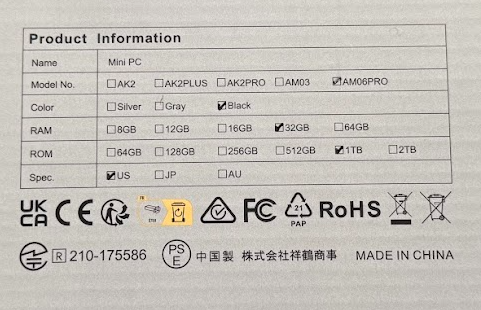
The machine I got, the AM06PRO with a Ryzen 7 5825U, 32GB RAM (2x16G), and a 1TB m.2 SATA SSD, came in pretty much the same packaging ACEMAGICIAN uses for most of their mini-PCs in the NUC/MacMini form factor. Specs are listed partially on the back, and at the time of my order, the computer was selling for $319 after checkbox coupon on Amazon. It’s currently unlisted, but there are 16/512 and 32/512 versions for under $300 on the page this link leads to.

I chose the 5825U over the 5800U options for a tiny bit of extra juice (2.00-4.50GHz for the 5825U vs 1.90-4.40GHz on the 5800U). Some benchmarks I read had the 5825U at as much as a 30% advantage in certain apps. It was one factor for me, along with the RAM and SSD specs for the price. As a regular desktop, a mini-server with Linux, home firewall/router, or even a USB-based NAS, either CPU should be fine for your needs.

Continue reading

A flood of build reports is coming!

I’m a bit embarrassed to have let rsts11 drift most of the year. For what it’s worth, I’ve dug out some project machines, and I may have acquired one or four in the last couple of months, so I’m planning to bring you some build logs and reports to entertain and edify you heading into the holidays.

From a ThinkStation M920x one-liter tiny PC that can take a 40 Gigabit Ethernet adapter, to a HP Z6 G4 workstation that a vendor recently called a “real chonker,” I have some fun stuff to review for you. And I’m finally making use of some RTX 3000-series GPUs that have been useless for crypto mining for years.

Wherever possible, I’ll help you find the bits to build or upgrade your own, but in most of these cases (heh) I started with a machine at least partly built up. Check your local marketplaces to see what people are building and selling locally, and you may find an interesting configuration you hadn’t thought of.

Below are teasers of three of the machines I’ll be working on. The Machinist system was purchased locally, while the other two were from eBay.

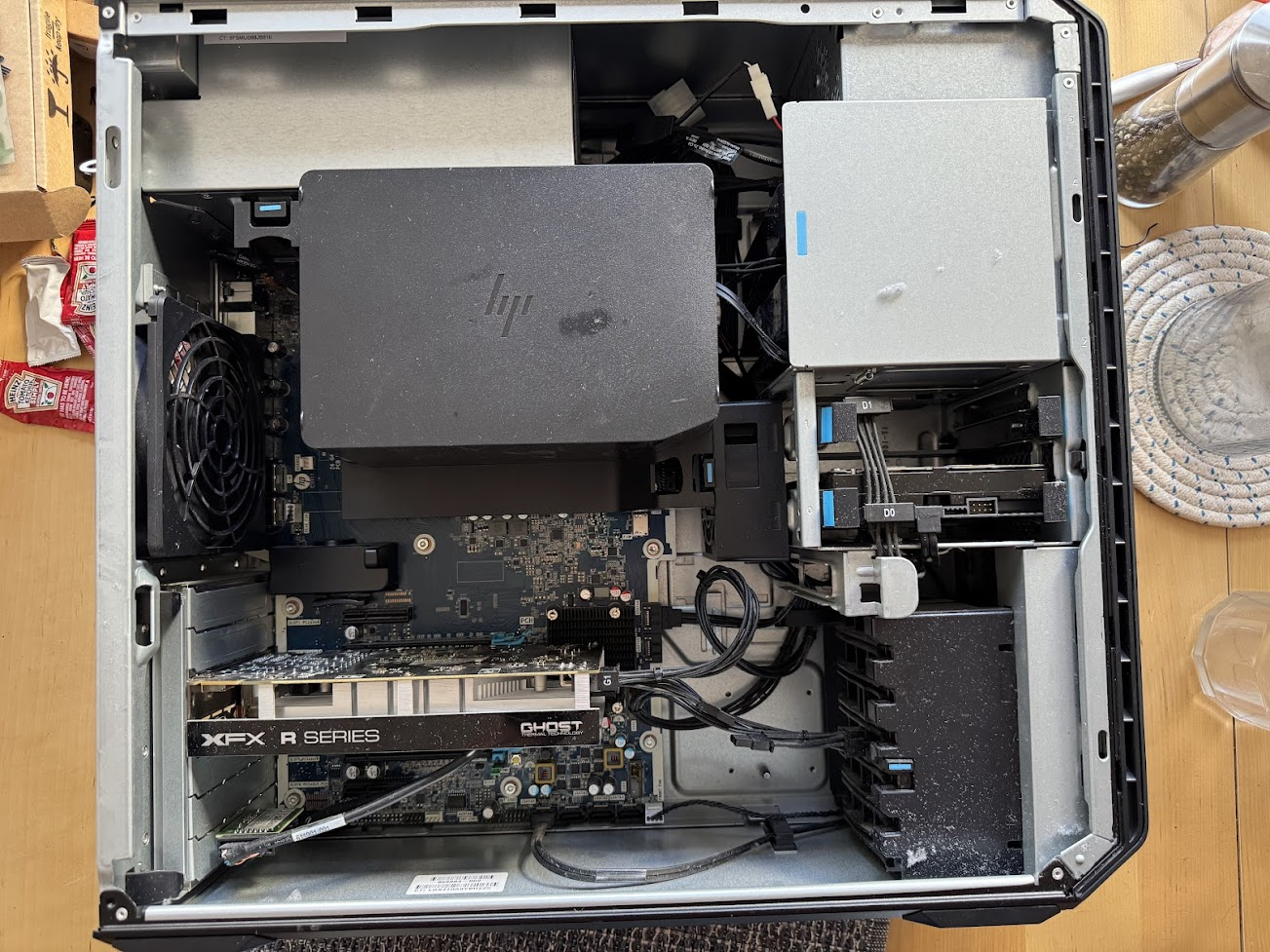
An HP Z6 G4 workstation, supporting first and second gen Xeon Scalable processors and up to 768GB of DDR4 memory. It shares something in common with Dell’s T5800 and some other Precision workstations from my past. Ketchup is not used as thermal paste, and the dust bunnies were blown out into the wild..
An upgrade to a quirky Machinist X99 PR9 system in a red custom case – E5-2695v4, and a current complement of 128GB DDR4 registered RAM. One downside to used PCs is they can sometimes come with bonus fragrances.
My third BOXX workstation, with the ASrock Z390 Taichi, an i7-9700K due for upgrade to my first i9 processor, custom liquid cooling, and some likely memory upgrades.
Continue reading

Upgrading the HPE Microserver Gen 8 and putting it into service

[Updated March 2025 with new processor prices/links, a “new” CPU option, and a better RAID option.]

A year and a half after my original write-up of the Ivy Bridge-based HP Gen8 Microserver, I’m finally doing a last round of pre-launch updates and documenting the upgrades I made.

The Microserver Gen8 is easily found for under $200 on eBay as of 2025. And it’s still quite a capable little machine.

You can read the original write-up (as updated to December 2018) here: Warming up the HP Microserver Gen8 and PS1810-8G switch

More links at the end of this post. Pricing has been updated as of 2019-08-15, and again on 2025-03-18, but is still subject to change without notice.

Where do we start?

The HPE Microserver Gen8 as I received it had the Intel Pentium G2020T processor, a dual core, dual thread, 2.5 GHz processor with integrated Intel HD Graphics. For an ultra-low-end workgroup or SOHO server, that’s not too bad, and it’s better than the Celeron G1610T option.

gen8-cpus

Stock processor options for the HP Microserver Gen8

But since we’re not worried about the warranty and do want a bit more power, we looked at the following options for a CPU upgrade.


Xeon Processor CPU speed C/T TDP Integrated graphics? eBay price/link March 2025 (
August 2019 , December 2018)
E3-1230 v2 3.30 – 3.70 4/8 69* No $20.00
(49.00, 75.00)
E3-1260L (v1) 2.40 – 3.30 4/8 45 HD2000 $15-20
(34.30, 57.00)
E3-1265L v2 2.50 – 3.50 4/8 45 HD2500 $35ish
(99.00, 100.00)
E3-1230 v2
(added 3/2025)
3.30 – 3.70 4/8 69* No $10-15
  • The 69W parts may require additional cooling consideration.

Since we didn’t have a use case in mind for this, we went for the E3-1265L v2 processor. CPU speed is reasonable, power is within the envelope for this system’s cooling capacity, and the price didn’t turn out too bad (although it was almost twice as much a year and a half ago).

The system arrived with 16GB of memory, which is the maximum supported with this generation of processor and a two-DIMM-slot motherboard (the CPU will handle 32GB but no more than 8GB per DIMM, and the Memphis Electronics 16GB DDR3 DIMMs require a newer generation of CPU).

The system also shipped with a single 500GB SATA drive and three empty trays for expansion, connected to the onboard B120i storage controller. There’s a low profile slot at the top suitable for an optical drive, or a hard drive carrier. According to the specs, the first two bays are 6gbit SATA and the last two bays are 3gbit SATA. You can add a P222 Smart Controller to provide battery-backed cache and expanded RAID options; these can be had for less than $25 on eBay (although a P410 for as low as $20 might be easier to implement).

I installed a 32GB Micro-SD card for OS boot. Like the previous Microservers, the Gen8 offers an internal USB port, but Gen8 adds a MicroSD slot which may be less likely to snap off during maintenance. If I were running a heavy duty Windows or Linux server on this machine, I’d probably either put an SSD on a PCIe carrier card or use the optical drive SATA connector on the board to mount a boot drive in the optical bay. But for VMware or appliance-type platforms, or for light use Linux, the MicroSD should be enough.

Bringing the Microserver Gen8 up to date

One of the first things I do when building or populating a system is to upgrade any applicable firmware on the system. This could include the lights-out management, the system BIOS itself, drive controllers, optical drives, etc.

This gets complicated with HPE gear, as they decided to restrict all but “critical” BIOS update to customers with active support contracts or warranties. There are dubious workarounds, but it’s more of a pain than for any other mainstream vendor. Luckily (and I say that sadly), some of the critical vulnerabilities around Intel microcode in the past year led to the most recent Microserver Gen8 BIOS being considered critical.

So I gathered the latest BIOS, the ILO 4 firmware for out-of-band management, and the latest firmware for the PS1810-8G switch that this system will be connected to. (Unlike the computer systems, HPE’s networking gear carries a lifetime limited warranty and free access to firmware updates.)

With the switch connected to our upstream POE switch and the Microserver’s three network ports (two gigabit LAN, one ILO) connected to the switch, I upgraded the firmware on all three components and installed CentOS 7 from the latest ISO image via external USB flash drive. Additionally, I got a free 60-day trial license for ILO 4 Advanced from HPE.

One quirk I ran into was with regard to the .NET-based remote console and Chrome browser. In short, it doesn’t work unless you install a plugin to handle the .NET launching. I didn’t want to bother with Java either, so I accessed ILO from Microsoft Edge and used the .NET option from there.

Where do we go from here?

In the near term, I’m planning to install the Aquantia AQN-107 10GBase-T/NBase-T adapter and use it to test a couple of new devices in the home lab. Linux with iPerf or the like should be a good endpoint, and with a Thunderbolt 3-to-NBase-T adapter and an economical NBase-T/10G switch to work with, it should be compact and functional.

Longer term, with the former VMware “$25 server” being converted to EdgeLinux (from the makers of the Antsle servers we wrote about here and here), I will probably have this box serve as my in-home vSphere / ESXi system.

There’s a very small chance that I’ll break down and get the new Gen10 machine, but with as many spare computers as I have in the home lab now, it’s not a high priority.

What have you done with your Microserver recently? Share in the comments, or join the conversation on Facebook or Twitter.

For more information on the Microserver Gen 8 (especially around expandability):

HomeServerShow.com has an exhaustive page on Gen8 upgrades and other features and functions.

ServeTheHome has their release-time update on the Gen8 system here: HP ProLiant Microserver Gen8 Updated Specs and Pricing

And if you want the latest and greatest, the Microserver Gen10 came out a year ago with AMD Opteron X3000 processors.

Looking ahead into 2019 with rsts11

This is becoming somewhat of a tradition… I’ll point you toward a Tom Hollingsworth post and then figure out what I want to look back on a year from now. As long as Tom’s okay with that, I am too.

This year, Tom’s New Year’s post is about content. He seems to think 2019 is the King of Content. I’m not really sure what that means, but seeing as my blogs seem to be alternately seasonal (with most rsts11 content in the winter/spring and rsts11travel in the summer/fall), I’m hoping to get a more balanced content load out there for you this year on both blogs.

You can see the new year’s post for rsts11travel, my travel-themed blog, over on rsts11travel of course.

Looking back on 2018

Looking back on rsts11 for 2018, our top-viewed posts were a bit surprising to me.

Continue reading