Warming up the HP Microserver Gen8 and PS1810-8G switch

gen8 front 2018-12-04 17.03.32

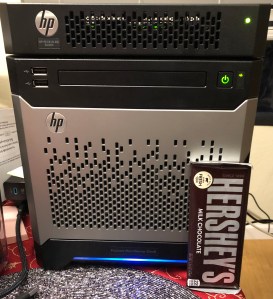
Microserver Gen8 with PS1810-8G switch, Hershey bar for scale.

[This post was started in April 2017 and, like the gear it describes, the post was shelved for a while. I recently took the Microserver and its matching switch out of the dark recesses of the home office closet and brought it up to date. The upgrade report has been posted.]

Quite a while back, I acquired a HP Microserver Gen8 – the Ivy Bridge-based successor to the very popular N40L and N56L models. is model has been replaced by the Gen 10 model, but is still quite serviceable in its own right, and can be found on eBay for $500 and up depending on configuration.

The Gen8 Microserver comes with one of four dual-core CPU options (pictured below from the spec sheet; see Intel ARK for comparison); if you care about PCIe 3.0 vs 2.0, you’ll want the configure-to-order Xeon option or a warranty-voiding aftermarket upgrade. Folks on various home server forums have validated the E3-1230v2 ($75 on eBay), 1260L (from $57), and 1265Lv2 (from $100) processor upgrades (Intel ARK comparison), although the latter may push the cooling envelope a bit. Continue reading

A (Dell) Precision replacement for our Intel NUC desktop

I didn’t really expect to be writing another build report so soon for my primary desktop. But in October of this year, it seemed to be time for a hardware revamping for my primary home desktop.

About five months ago, I built a 7th generation core i7 Intel NUC with Optane technology to replace an older 3rd generation desktop. That system ran a dual-core, quad-thread i7 processor, 32GB of DDR4 laptop memory, a 32GB Optane drive, and a 2TB solid state hybrid drive (SSHD).

Well, after three months I still felt the pain of a dual core system more than I’d expected. And in the meantime, my brother sent me a barebones Dell Precision Tower 7910 as an early birthday present. I was a bit concerned about it at first, since it uses Xeon v4 processors and DDR4 ECC registered memory, neither of which is inexpensive. The 1300 watt power supply had me concerned as well.

I decided it would be worth rebuilding the system anyway, since I could easily sell the system if I chose not to use it, and it’d be fun to run a more modern workstation for a while if I did decide to sell it. Spoiler: I am not planning to sell, but I’ll share the build report here so you can think about the options in case this meets your needs.

T7910 2018-12-04 16.07.19

Dell Precision 7910, pictured beneath the Intel NUC desktop we built out this summer. 1U power distribution unit and 1U security appliance below for scale. Sorry, no banana.

Curious Caveat

I had written most of this post, but when I went to confirm pricing, I realized that I’m running non-registered, non-ECC RAM in this system. Despite the documentation saying UDIMMs are not supported, and Crucial’s compatibility list showing all ECC Registered RAM, the parts I’m using are unbuffered non-ECC non-registered DDR4.

This may not be an optimal configuration, but if the cost and availability work better for you, it may be worth a try. Note that you will almost certainly be unable to mix registered and unregistered DIMMs, and you won’t be able to mix LRDIMMs and regular RDIMMS.

Update [2019-07-09]: I’ve noticed that the system has been sluggish, acting like it was swapping things out to disk even though I was only using about half of the total 32GB of RAM. Flashbacks to bad Solaris configurations in 2004. I replaced the unsupported memory described above with a set of four PC4-1700R Registered ECC DDR4 RDIMMs, and so far with a little bit of use it’s back to what I’d expect from a 28-core system with plenty of memory. Still using nearly half the RAM, with Chrome alone taking 6GB, but it’s snappy and not painful to use.

Continue reading

HSC Electronics will be halted early next year

Update: The HSC folks were out with a stand at the Electronics Flea Market in Sunnyvale this morning (March 9, 2019). Signs and flyers noted that they’ve sold the store to Excess Solutions of San Jose. Should be interesting to see how the inventory is integrated.

Halted Excess 2019-03-09 07.40.42

Update: HSC closed this past Saturday, January 12, 2019. There was an impressive crowd, cake and coffee, and last minute deals. Best wishes to the owners and employees for success in their next stages, whether retirement or different work.

About 8 months ago, I wrote about the closure of Weird Stuff Warehouse in Sunnyvale, California. Well, Halted Electronic Supply/Halted Specialties Company/HSC Electronic Supply will joining Weird Stuff in the history of Silicon Valley in just about 6 weeks.

Halted History

Halted has been in business for 54 years now. The Homebrew Computer Club often visited back in the day (including both Steves). I wasn’t around the Bay Area for most of that time, but got an introduction early in my time here, in the late 90s.

Around the turn of the century, Halted had three locations, with the main one being in Santa Clara on Ryder St, just off Central Expressway and Lawrence Expressway (near the Sunnyvale Frys, the pre-1996 Weird Stuff, St John’s Grill, and Ham Radio Outlet among others). Gradually the remote locations closed, and the Ryder store was left.

Halted was known for components of all sorts, books and magazines for people who made things from those components, antique radios, tools, legacy computer components, and all sorts of other things. It wouldn’t be unusual to find people in the store with ham radio transceivers on, students buying components for an electronics class, people reminiscing about the radios they used to listen to during the war, and random bargain hunters looking for computers and electronics to mess with at home.

They also had a well-known parking lot sale every September, where cases and crates and pallets would come out of the warehouse, hot dogs and donuts would be put out for sale, and you could get some incredible deals on things you’d forgotten you needed. And you could also find them at the Electronics Flea Market sometimes, with a truck full of carts from the store.

The New York Times had a feature on Halted in 2009, revealing and even foretelling the greatest strength and weakness of the business at that point. Continue reading

Quick Take: Charging with the Monoprice 80W USB-C/USB-A wall charger

[Update below from Monoprice on the USB-A ratings.]

I recently bought the Monoprice 33467 wall charger, and got a question about charging wattage on the site a little while afterward. Since Monoprice does not provide specific rates for the ports on this device, other than 60 watts on USB-C (standard for USB Power Delivery chargers) and 80 watts total, I decided to get out some thirsty high-draw devices and USB power meters to see what the rates would be.

Testing kit

This device has a removable two-pin power cable, a USB-C port, and four USB-A ports. The USB-C port is rated for up to 60 watts with USB-PD, and the total adapter is rated for 80W.

Update: The vendor confirms 2.4A per USB-A port, with full capacity available across all four ports simultaneously. See end of post for more.

It gets a bit warm when you load it up, so I wouldn’t put it on a container of ice cream or on bare skin, but it’s not too hot for an 80 watt device.
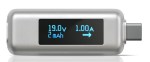
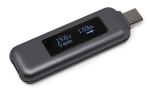
These are bidirectional-capable testers that show voltage, amperage, milliamps of current, and direction of power. I believe these are identical devices, either licensed or flattered by one or the other vendor. I bought the Satechi almost two years ago, and wrote about it here); the Plugable came out afterward, I believe.

Satechi told me some time ago that they should handle 300W of power, and I’ve used theirs with the 130W proprietary Dell Thunderbolt 3 Docking Station charging option for the XPS 15 9550 laptops, without releasing any smoke.

The bidirectional feature is interesting, in that  you can use some USB-C mobile phones to charge other devices, and this will tell you which way the power is going. It’s also conceivable that you could charge a USB-C power bank with your laptop, as opposed to the other way around.
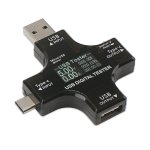
This is a formidable device in that it supports USB-A, USB-C, and Micro-USB input, with USB-A and USB-C output based on the input source. It’s rated for up to 30V/5.1A which should cover any USB-C charging I’ve seen.

It is large and not friendly to being plugged in next to another cable, as you can see from the picture, but it’s very convenient (even showing four wire voltage and three different English interfaces/displays as well as Chinese). It is not bidirectional, so you’ll plug the metal plug into the power source and your charging cable into the jack.

PortaPow is a UK company that came to my knowledge for their charge-only / data blocker cables. These cables block/bridge the data lines in a USB charging cable, letting you charge (potentially) faster while keeping a host or charging device from spuriously accessing the data on your device.

Their power meters offer similar functionality along with a backlit LED power display. The pictured/linked one is their third version; I’ve used the first two versions successfully, although the older ones do not to my knowledge support higher than 5V charging.

Charging targets:

All targets were chosen for capability to charge at higher than 10W rates, as well as being under half charge so that full charging rate would be realized.

  • Pixel 2 XL from Google, at around 20% charge (USB-C)
  • iPhone 8 Plus from Apple, at under 20% charge (Lightning)
  • iPad Pro 10.5 from Apple, at about 45% charge (Lightning)
  • PowerCore 26800 Premium Portable Charger from Anker, at about 20% charge (Micro-USB)
  • XPS 13 9370 from Dell, at about 40% charge (USB-C PD)
  • XPS 15 9550 from Dell, at about 4% charge (USB-C PD)

Quick and dirty test results

The Pixel 2 XL charged at 12 watts (9.33 volts) with a USB-C cable. With a USB-A to USB-C cable, I got closer to 5 watts, although the cable might be to blame.

The iPad Pro charged at about 12 watts (5.12 volts) with a USB-A to Lightning cable, and about 28 watts with the USB-C to Lightning cable.

The iPhone 8 Plus charged at about 18 watts (9.37 volts) with USB-C to Lightning, but only 8 watts with USB-A to Lightning.

The Anker battery pack charged at about 17 watts (9.34 volts) which is fair for the Quick Charge 2.0 level of input (the newer version of the pack supports QC 3.0, and the Power Delivery version of course supports USB Power Delivery at up to 27 watts input).

The XPS 13 9370 negotiated to 30 watts of input (at 20V profile) while powered down.

The XPS 15 9550 negotiated to 45 watts of input (also at 20V profile) while powered down. This would have reported a BIOS adapter error if I had booted up while connected, as would the Pixel C 60 watt charger, but it will still charge.

Where do we go from here?

In short, if you need to charge several devices at a time, but don’t want 4-5 chargers, the Monoprice 80 watt charger is probably a good choice. If you have a more power-hungry device, like a large MacBook Pro or a heavy USB-C battery pack, you may still want to keep an 87 watt charger around for it, but for modest / travel use, the power this device offers should be good enough to keep you going.

I will probably plug the charger itself into an AC power meter, and see how it handles multiple inputs (including the laptops) in parallel. My expectation is that USB-C would take priority, so with 45W going to USB PD, I could use up to 35W max on the USB-A ports. I did have the iPad, Pixel XL, and Anker battery plugged in at the same time and they seemed to have similar charge rates to each one individually connected.

Have you had experience with the Monoprice charger, or have any test conditions you wonder about? Share in the comments, and I’ll check them out if I can.

[This was intended to be a Quick Take post, and while it was created quickly, it’s not as short as I’d originally planned.]

Update: A Monoprice product specialist responded to my inquiry this morning (11/9/2018). They said that the charger “can supply at least 2.4 amps each port and all four can supply this current simultaneously. The total wattage of 48 Watts across all USB-A ports.” Based on this reading, if you are pulling 12 watts per port, you should be able to drive 32 watts of USB-C which should cover an XPS 13 or smaller, a battery pack, or the newer Apple devices with rapid charging.

Quick Take: When your Plantronics Savi headset starts to give out

[This is the first of a category of “quick take” posts that should be shorter and more frequent than the long, drawn-out, deeply detailed posts I usually procrastinate for weeks on. Let me know what you think of this format as a supplement to the usual volumes.]

I’ve used the Plantronics Savi W740/W745 headset on my work phone and PC for almost three years.

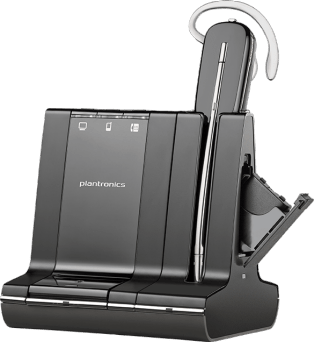
The Savi W740 (currently $234 on Amazon) is a three-connection (PC via USB, Cell phone via Bluetooth, Desk phone via various methods) DECT wireless monaural headset with charging station and pretty good range. I can usually get 100-150 feet though the entire depth of our house into the front yard and almost to the street without dropping the headset connection.

The Savi W745 (pictured above) is a Savi W740 with a battery charging module rather than the headset-only charging module. Oddly it’s about the same price as I write this post, $227 on Amazon, although the prices vary from day to day, or if an accessory like the headset lifter is included. Note that the model W740-M and W745-M are optimized for Microsoft softphones; I don’t use Lync or the like so I didn’t try those.

You can upgrade the W740 to the W745 using the 84601-01 charger, which also comes with an extra battery (currently $35 on Amazon). You can also buy the 84598-01 replacement battery for about $24 on Amazon, or $22 with Subscribe and Save. I replaced mine after two years; your mileage may vary.

The headset unit is the same WH500 unit between the two models.

One thing I really liked about this headset was the “unlimited talk time” when you use a second battery. It takes less than five seconds to change out the battery, and while the headset loses audio, your call doesn’t drop, and can be resumed once the new battery is recognized. With about 4 hours of battery life per battery, you can make it through an entire day of meetings and calls without losing your connection. You might lose your mind, but that’s beyond phone technology to fix.

After using the W745 for almost three years, I started to experience an odd failure in the headset. When I would push the rocker switch “down” to reduce volume, I would get a scratchy sound and the headset connection (not the call) would drop. After about five seconds it would beep and reconnect. Future use of the down switch on the same call would be fine, but on the next call or audio session the first “down” would drop the headset link briefly. This was the case for PC and desk phone connection.

I had an exchange with Plantronics customer support, and while the “try another headset, and then try another base” wasn’t the most efficient troubleshooting, I was able to borrow a headset and found that the problem “went away.”

At this point, I can replace just the headset (with the 83356-01 / WH500 Spare Headset, pictured above right, $120 at Amazon) rather than the entire $200+ assembly.

I do have a couple of used Jabra headsets around that I may give a try to (either a Jabra PRO 9460, $200 on Amazon, or a Jabra PRO 9470, around $240 on Amazon). although I’ll need a new “electronic handset” or EHS cable to let the headset system control the switchhook on the phone. 

Have you had good (or other) experiences with any current multi-connection wireless headsets? Please share them in the comments below.

Disclosure: While my desk phone is manufactured and provided by my employer, and while Plantronics has provided me with two personal headsets at past events (the 5200 in 2017 in a drawing and the 6200 in 2018 as a “trade-up”), the headsets mentioned in this post were purchased by me and paid for out of my own pocket.