
What to do with your Evergreen farming rig

See bottom for an update on Evergreen Mining as of 2025-03-23, and another as of 2025-05-11. The project is shutting down on 2025-05-23. Stable farming rigs will continue to work, but the app will not, and no updates will be made to the software on your rig.

tl;dr: Evergreen is having issues. If you have issues with your farmer or app and want to head in another direction, you can set up your own farmer using Spacefarmers community node or your own full node, or you can reuse your drives for other things.

Also, you can use the official Chia software in wallet-only mode, along with the keys/mnemonic from the app, to transact your farmed Chia (it’s not “in the app” or held in any way by Evergreen).

Also, this post is a work in progress, as I want to get the info out there before everyone sets their EVG rigs on fire.

Finally, if this helps and you want to throw me a donation, https://ko-fi.com/robnovak is there. Completely optional, but it helps my coffee stash and my motivation.

As you’ve seen over the last couple of years, I’ve written about the Evergreen “miner” for Chia. It was designed as a turnkey farmer where you buy pre-plotted drives and run them with a low power single-board computer “hub.”

Evergreen was a good low-effort way to get into Chia farming, and while the price was at a premium over what you could build on your own (see my original Evergreen post for a dated example), for people who couldn’t or just didn’t want to invest the time (and some expense) into building and maintaining/managing their own farm, it was a valid option. I personally have a single-drive 12TB rig under my television and it’s spent most of its life doing what it’s supposed to. (I did get a $100 coupon for it as a promotion when I bought the gear almost two years ago, but I have never been compensated for writing about Evergreen, and they have no say in what I write.)

In the last six months, though, support responsiveness has been low, visibility of the leadership team has been mostly non-existent, and a lot of farmers have been stuck in extremely high latency support ticket loops. As I finish up this post on Saturday afternoon (March 8, 2025), it’s been over a week since either of the visible members of the Evergreen team have posted anything on Discord.

I don’t fault the support team (Jakub) for this, having been the one support person for many organizations, including crypto pools, before. But with a recent Chia day-zero type bug fix causing a flurry of panic around the closed Evergreen software platform, the Android app disappearing from the app store, along with a public conflict between the founder (and his girlfriend) and the person responsible for the software and farmer software… a lot of people are concerned about the future of the project, and people who are stuck with hardware or software issues wonder if they have expensive paperweights.

I hope that Dylan and Evergreen are able to recover and get support ramped up and the open issues resolved soon. But given that a lot of people are considering just shutting down their gear if a problem comes up, I am providing some suggestions on how to deal with the discomfort around your Evergreen farmer.

It should be painfully obvious, but this is in no way an official, endorsed, approved, or even reviewed statement from Evergreen. It’s just a guy who’s about up to 4 years in Chia trying to help the community out. And if you take any of this advice, it’s all on you with regard to the outcome. Should be pretty clear, right?

Easy button: Just let it keep farming

If your Evergreen gear is still working, submitting partials, and getting payouts, you should feel free to just let it run as long as it works. I expect based on the support volume on their Discord that most farmers are in this category.

For any of the following options, there is absolutely no official support, and you take full and complete responsibility for any change you make to the gear you bought from Evergreen. I will not provide any support either. Proceed at your own risk.

NUC5I5 mini-PC, suitable for a community node farmer or a full node farmer (with a 500GB or larger NVMe drive for the blockchain database). It should cost you less than US$100 used.

Semi-easy button: Connect to a mini-PC and load your keys

If you have a mini-PC, a Raspberry Pi, or even a spare desktop or laptop that can run Linux, you can relatively easily set up your plotted drives on your own instance of the Chia software. This should be a computer you can leave on all the time, hence the focus on low power. And you need Linux because the hard drives use the Linux ext4 filesystem (if you have a way to access them on another OS, you probably didn’t need this post).

Some possible options for your replacement farming PC (not my listings, but they are affiliate links and I may receive a commission if you buy through these links):

I would suggest a minimum of a 5th gen Intel Core processor (i5/i7), 8GB RAM, 128GB SSD for use with community node or 512GB SSD for running your own node. Most of these machines can be upgraded afterward. You’ll also need a USB flash drive of at least 16GB to put the Linux installer on.

You can run a farmer with or without node on a Raspberry Pi 4 or later, although you may not be saving a lot of money and you’re giving up a lot of expansion and growth capability.

You just need to install Chia software or MadMax’s Gigahorse software (the latter is required if you’re using compressed plots, or if you plan to make compressed plots), set it up for the Spacefarmers community node, get the mnemonics off your plotted drives (see below), and configure your farmer to farm the plots on your external hard drives.

Each plotted drive should have a preload.pconf file that contains your mnemonics and addresses. Don’t modify it just in case. It isn’t used by standard Chia software. And note that these sample addresses and mnemonics are invalid. Don’t try using them, you’ll get errors.

{
"mnemonic": "chicken chicken chicken chicken chicken chicken chicken chicken chicken chicken chicken chicken chicken chicken chicken chicken chicken chicken chicken chicken chicken chicken chicken chicken
",
"first_address": "xch1xxxxcx3xx333xx3x3xccx3xx3xxxxxhx3xxcxxxxx0c3xx3xgxxxxxxx3",
"contract_address": "xch1xxxxcx3xx333xx3x3xccx3xx3xxxxxhx3xxcxxxxx0c3xx3xgxxxxxxx3",
"payout_address": "xch1xxxxcx3xx333xx3x3xccx3xx3xxxxxhx3xxcxxxxx0c3xx3xgxxxxxxx3",
"launcher_id": "q3s3n3qsp33q333o3r3333pn333o3qn3333q333333ro3r333r3qsrn3rq33333r",
"worker_name": "Evergreen_v1"
}

You use the ‘chia keys add’ command to add the mnemonic phrase shown in your files, so that your chia system can recognize your plots as yours. The “-l” parameter puts a label on the key.

This labeling is optional, but good for keeping track of multiple keys, especially if you have multiple Evergreen drives..You probably have to do this once for every Evergreen-plotted drive.

chia@chianuc5:~/chia-gigahorse-farmer$ ./chia.bin keys add -l chicken
Enter the mnemonic/observer key you want to use: chicken chicken chicken chicken chicken chicken chicken chicken chicken chicken chicken chicken chicken chicken chicken chicken chicken chicken chicken chicken chicken chicken chicken chicken

You could even install Linux (Raspberry Pi OS or Ubuntu probably) on a new 32GB MicroSD card and use the existing “hub” as your new farmer. This method also means that if your issues with Evergreen are resolved, you can just swap back in and run normally.

Note that you should start the chia wallet as well, let it get synced (via ‘chia wallet show’), and once that’s done, your farming should work. This bit me, with almost a day of “plots were eligible for farming” but no proofs. On average, a 12TB Evergreen drive with 109 plots should get 1090 points a day, or a point every 80 seconds on average, so if you don’t see proofs in the logs, check the wallet sync. Once your wallet is synced and you’re finding proofs, you can stop the wallet and reduce load on the community node.

If you have the compressed C29 plot option with remote compute, you would need a machine with a fairly modern GPU available for the compression. This is not a huge barrier, as most gaming PCs can handle this load, as well as other machines with a reasonably sized NVIDIA GPU (probably with 6GB or more of VRAM). But it is a bit more complicated, and beyond what I’ll cover here. If your new farmer has a NVIDIA GPU, it should just work.

This method also means that if your issues with Evergreen are resolved, you can just swap back in and run normally.

Scorched earth method: They’re Just Hard Drives

While there’s some proprietary magic to the Evergreen Hub mostly around software, the rest of the rig is just USB external hard drives. You can always connect them to another machine and replot over them, or reuse them for other things (backing up your NAS, etc).

Sketchy option: Sell your rig

This one isn’t something I would recommend, and I wouldn’t be comfortable selling a rig I was decommissioning for the reasons currently floating around Evergreen’s platform. But if you find someone who wants the gear and understands the issues, or who just wants the components, you could probably sell it. You can’t get your purchase price back, I’m pretty sure, but you can recover some shelf space and get a bit of cash out of it.

Where do we go from here?

I unplugged my Evergreen node, since it got quirky recently and I haven’t had the inclination to troubleshoot it myself. The drive is now connected to a NUC5i5RYB mini-pc I picked up at a flea market this morning (March 9) for about $40. I upgraded it from a 256GB SSD to 1TB because I had one around and may want to run a full node on it, but without the full node, even 128GB is more than enough.

Pro-tip: For your new farmer rig, if you choose to use one, make sure to set it to power on after power loss. I forgot that when setting up my NUC5i5, and my former-Evergreen rig was offline after some weather-related power outages at home. With Raspberry Pi or the like you shouldn’t have to do this. With most PC-type solutions, you probably do.

I hear that there will be some updates coming from the Evergreen team soon, as the support guy is back and responding again.
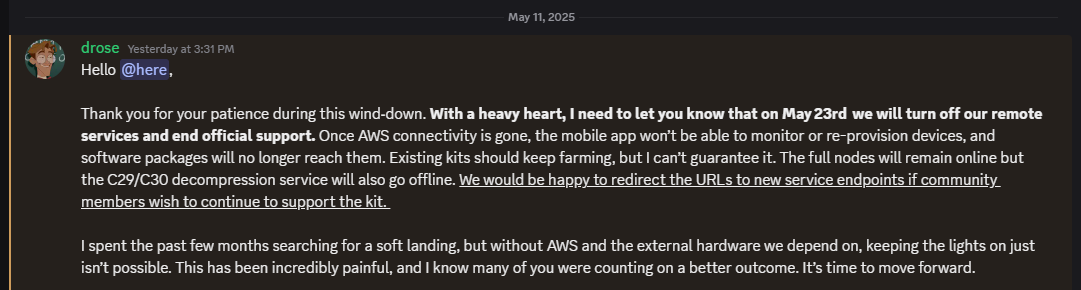

Update as of May 12, 2025.

Dylan of Evergreen Miner has made an update post to the Evergreen Discord.

In short, remote services will end on May 23, 2025. There will be no more official support, although that has been the case for two months now anyway.

If your rig still works, it will continue to farm and earn XCH as before.

There is a replacement OS being developed by a group called Druid Garden (including former Evergreen folks) to keep the gear running mostly as it is today.

You can sell your drives on eBay (my guess is $10/TB in good condition), reuse them for your own purposes (Chia or not) as noted above, or Dylan has a form to connect with liquidators. This is (imffho) more relevant to larger farmers – liquidators will probably not bother with one or two drives.

Dylan doesn’t call this out, but if you have not already done so, GO INTO YOUR APP AND GET YOUR MNEMONIC/SEED PHRASE so you can access your wallet even if the app dies.


Update as of March 22, 2025.

I haven’t watched the videos about the downfall of Evergreen, but on the EVG Discord today, Dylan, the founder of Evergreen, said he has no ability to do anything with Evergreen.

I asked him to make a more clear and centralized announcement, but for now it looks like the odds of the service restoring customer support, RMAs, or fulfilling any orders that have not already shipped are pretty close to zero.

So see above, and if you’re interested in a video on the process, or even a more step-by-step blog post on the cutover and/or the GPU remote compute, let me know in the comments.

And I’ll be posting another blog soon with some farmer/plotter designs for 2025, including the machines I personally use today for both purposes. So stay tuned.

As always, if you buy through eBay, Amazon, or some other links on my post, I may earn a small commission.
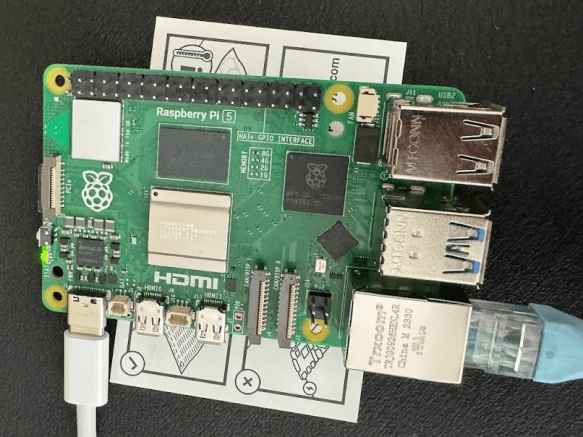
I went in seeking a heatsink, and came out with a Raspberry Pi 5

[Updated 2023-11-12 for farming experience and PoE splitter]
[Updated 2023-11-22 for Pi 5 4GB plot time and case experience]

I was on the waitlist for Raspberry Pi 5 8GB at my local computer shop, Central Computer. I had to go in to get a cooler for a new machine I am going to be building this month, and at the checkout I asked if they had any Pi 5 boards left, thinking I’d play with a 4GB board if they had any left.

“We’ve got 4GB and 8GB, which would you like?”

Well, of course, 8GB.

I already had a couple of cases coming from Amazon in preparation, and a 5V4A PSU (the 5V5A one for full power with the new Pi is already hard to come by), and a fresh MicroSD card from my last visit to Central, so I was ready to go. 

I was planning to wait a while at first, but someone on one of the Chia Discords asked about Pi5 for Chia, I took the challenge on. 

Continue reading

A single-board Chia plotter, a DOA RMA, and an adventure in external boot installers with the Orange Pi 5B

This isn’t entirely a Chia post, although it was inspired as such. You may have seen a teaser post on r/Chia, but if you didn’t, you’ll be okay.

In my time in the Evergreen Miner community, and elsewhere, I’ve had people ask if you can plot Chia on a Raspberry Pi.

I’m pleased to report that it can be done on a 4GB Raspberry Pi 4B, and you can create a Gigahorse compressed C5 plot in about 22.1 hours. For this test I used the 4GB board, booted from a MicroSD card, with an external USB 3.0 to SATA enclosure and a 1.92TB Dell Enterprise SATA SSD.

I wanted to try on my remaining 8GB board, but it is having issues with USB storage, so after a couple of hours of testing, I set it aside and thought about other low cost, low power options.

I tried my Zimaboard 216 single-board x86_64 server, featuring a 2 core Celeron processor, 2GB RAM, 16GB eMMC storage, a PCIe 2.0 x4 slot, two SATA ports with power (for SSDs), two ports USB 3.0, dual Gigabit Ethernet, and a completely silent (fanless) design. Alas, while the plotter “worked” on this system, 2GB was not enough, and the OOM killer process took down the plotter. I have a Zimaboard 832 (the 2021 green edition, good for Chia) but ran out of weekend so I just went with plan C.

Enter the Orange Pi

I’d heard good things from the Evergreen co-founder about the Rockchip 3588, and ordered an Orange Pi 5B with 16GB RAM and 256GB eMMC. I got it over the weekend, hooked it up, discovered that you have to use rkdevtools to install it, but still could not get video or network connectivity with it. It got power, and drove the fan, but no status LEDs, no network LEDs, and no rkdevtools access.

After checking with a friend, I learned that it should not have come loose in a cardboard box.

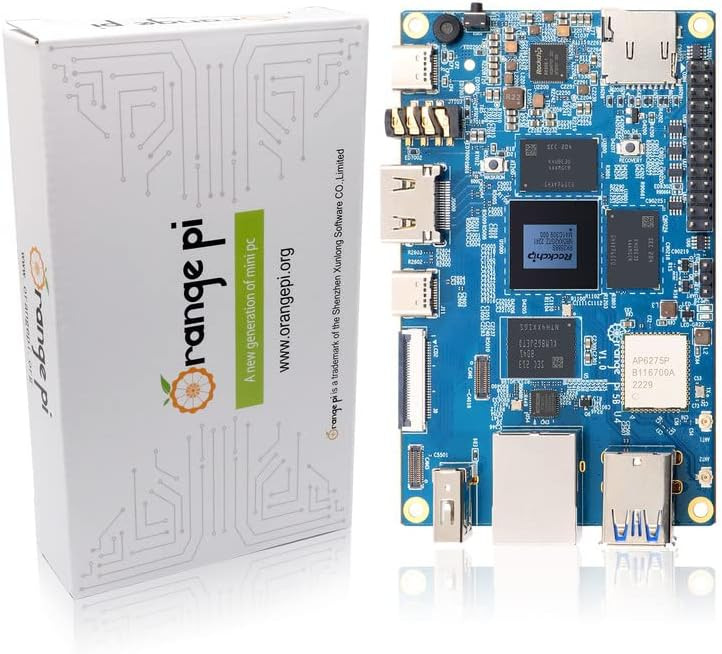
My first Orange Pi arrived exactly like this product page photo, but with the wifi antennas connected. No anti-static bag, no packaging protection, and no functionality.

I put in for an exchange, dropped off the board at my local Whole Foods for return, and got the replacement board Tuesday morning. This time, it was in a sealed anti-static foil bag in a plastic protective case. Much better.

The second Orange Pi arrived like this, and seems to have worked.

I set about doing the board bring-up. It’s more complicated than a Raspberry Pi, requiring the Rockchip dev tools package, a boot loader, and a specific Orange Pi build of Ubuntu. The well-formatted instructions for Klipper on the 5B from 3DP and Me were very useful for getting things going. You can also get the apparently-official 357 page users guide from Orange Pi’s Google Drive that has the instructions and more. I don’t recommend it if you can avoid it, though (ps: you probably can’t completely avoid it, but maybe don’t start with it).

The software downloads were a bit confusing for me… you have to get an Android image download (even if you’re not installing Android) from another Google Drive, which includes the RKDevTool program for Windows, the “DriverAssitant” bundle including the USB driver for board bringup, and the Miniloader folder with boot loader and configuration. It’s a long way from Raspberry Pi Imager or Rufus. And random Google Drive download sources are sketchy.

Anyway, after waiting two hours for the “download complete” message in RKDevTool that never came, I tried logging in via ssh with root / orangepi and got in. (Page 87 on the manual above, so maybe don’t completely avoid it).

From there I made a few more adjustments:

  1. Installed Zerotier VPN and joined it to my network.
  2. Executed ‘apt update’ followed by ‘apt upgrade’
  3. Set my time zone away from Asia/Shanghai with ‘dpkg-reconfigure tzdata’
  4. Verified that I could log in with orangepi, and left the root shell
  5. Changed root and orangepi passwords
  6. Rebooted to make the updates take effect (and to install my external USB SSD)

There are a lot of Orange Pi 5 series models

Another odd sequence of discoveries is that there are three primary models of the Orange Pi 5, each of which may come with different RAM and eMMC storage. I learned some of the distinctions after digging for my one NVMe drive that was smaller than 2280, and then finding there was no NVMe slot.

Here are the three models, with pricing for the smallest configuration I could find on Amazon. I would really recommend the 16GB models, and max out the storage if you go 5B. But it depends on your use case of course.

ModelOrange Pi 5Orange Pi 5BOrange Pi 5 Plus
CPURK3588SRK3588SRK3588S
RAM options4/8/16/324/8/16/324/8/16
Video options1x HDMI 2.1 out1x HDMI 2.1 out2x HDMI out, 1x HDMI in
Network options1x Gigabit Ethernet1x Gigabit Ethernet2x 2.5 Gigabit
Onboard storageNone32/64/128/256None
Optional storageMicroSDMicroSDMicroSD
2230/2242 NVMe2280 NVMe
eMMC
USB2x 2.0, 1x 3.0, 1x 3.1C2x 2.0, 1x 3.0, 1x 3.1C2x 2.0, 2x 3.0, 1x 3.0C
OtherWiFi 6 w/2 antennasm.2 E-Key
Bluetooth 5.0 w/BLE
Amazon PriceFrom $90 (4GB)From $100 (4GB/32GB)From $107 (4GB)
Orange Pi 5 models, with prices as of 7/25/2023 (affiliate links for Amazon, direct links for OrangePi.org).

Be aware that on the 5 and 5B, the USB 3.0 port shares a dual blue port assembly with a 2.0 port–the 3.0 port is on the top, and the bottom port, despite being blue, is USB 2.0. The 5 Plus has a pair of USB 2.0 (black) ports, and a pair of USB 3.0 (blue) ports.

On the Orange Pi 5 and 5B, the only USB 3.0 Type A port is the top port.

You can use a 5V/~4A USB-C power supply and cable, your own HDMI cable, and run without a case (these are slightly larger than a Raspberry Pi so you can’t reuse those cases), but I decided to drop almost $30 on an add-on starter kit. This kit from GeeekPi includes a clear case with tinted top and bottom, rubber feet for said case, USB-C power supply with inline switch, a fan, heatsinks for the DRAM and CPU, a 64GB MicroSDXC card and USB-A card reader, and a HDMI cable. (The description currently says Micro HDMI cable, but the board has native full size HDMI unlike the Pi4b).

Some machines to compare with the Orange Pi 5 family

After posting my plotting tests on Reddit r/chia, someone asked and clarified a question about the Radxa Rock and ODROID machines. I did some quick research and found some viable alternatives. If you have local supply chain or Amazon Prime limitations, these may get you going faster.

Radxa’s Rock 5 Model A and ODROID M1 are comparable to the Orange Pi 5B I tested.

For an upgrade to the Orange Pi 5B Plus style, Rock PI Model B also gives you NVMe onboard and a single 2.5 Gigabit Ethernet port (vs Orange’s dual ports) and support for a Power over Ethernet hat.

If you really want to go overboard, ODROID’s H3 supports NVMe, two DDR4 SODIMMs up to 64GB, dual 2.5 Gigabit Ethernet, two onboard SATA ports, and eMMC support..

I’ve set up an Amazon wishlist to show the systems I’m looking at. If you feel generous and want to send me something from the list, I’ll be happy to give you credit when I post the testing results. If not, it’s a checklist for me to work through.

Where do we go from here?

I tried to keep this post as chia-free as possible, as it’s relevant to a lot of other use cases. I may not have completely succeeded at that. In any event, I will have a Chia plotting post around single board and small board computers in August, and a few other things in mind.

Have I missed your favorite single board computer? Share it in the comments and I’ll add it to my list.

Pi in the sky: Seven tips for finding the single board computer of your dreams

2022-07-03: Updated for AtomicPi

Raspberry Pi boards have been intermittently available this year. They’re still very useful, but your odds of going into a retailer and picking up a few at list price are about as good as Ethereum hitting $5k this month. In other words, don’t hold your breath.

That being said, this type of single board computer is not completely unobtainable, even in today’s supply-chain-constrained market. Here are seven tips for finding the SBC of your dreams. 

1. Check local retailers

This is a long shot, but for some people in some regions, it may still work. My local shop, Central Computers in Silicon Valley, has had them intermittently for a couple of months at reasonable prices. 

2. Check official distributors 

You can find sellers of the Pi boards on the official Raspberry Pi website. Stock may vary from day to day, and preorders may be possible, so check early and often if you’re pursuing this option. 

3. Check Amazon

Right now, I see a number of shippable Pi 4 boards in 4GB and 8Gb on Amazon. They’re pricey, with the 4GB board around $144 and the 8GB board around $195. But if you have to have it for work, or if you’ve found a way to profit majorly from using one of these boards, it may be the way to go. 

4. Consider kits

You may be thinking “I don’t need a power supply, a microSD card, a case, and all the other stuff,” but even when backorders weren’t considered, I saw starter kits with the Pi 4 board available in quantity at the above options. Right now, my local shop has the Okdo starter kit with the 8GB board for $160, limit one per customer. The bare board is $90 but out of stock, as are all of the standalone boards. So if you need access to a board soon (hopefully with someone else footing the bill), this is a very viable option. 

5. Can I interest you in a Pi400?

The Raspberry Pi 400 computer is a Pi 4b equivalent in a different form factor. The board should have the same performance as a 4GB Pi4b, and even when boards and kits were unavailable, the Pi 400 was readily available in a standalone unit at about $80 or a kit with power adapter for $110. Prices on Amazon are a bit higher (like $120 for the standalone or $180 for the kit), but still lower than the 4GB standalone board mentioned at Amazon above.  

You won’t be able to use your Pi cases or enclosures with the Pi 400, since it’s wider, but you can consider building your own stand or looking on Thingiverse and the like for 3d-printable enclosures for these boards. 

See Jeff Geerling’s “Raspberry Pi 400 Teardown” blog post and video to see what’s inside and how you might be able to repurpose the board for your needs. 

6. Check your local marketplaces for new or used boards

You may find some boards locally on Craigslist, Facebook Marketplace, Nextdoor, or the like. eBay is also an option, but it may or may not be local. As I write this post, I see boards in my extended area from $200-325 on Craigslist, and surprisingly $120 and up on Facebook. Someone is selling a complete 8-node cluster, including 6 8GB and 2 2GB boards (and power supply, network switch, tower case, etc) for $1000, which is pretty reasonable for the current market.

With these local marketplace options, be sure to buy locally, and if possible, try the board out before paying (if it’s not sealed). With eBay, read the ad carefully and be aware of buyer protections available to you.

7. Look into other small computer options

Raspberry Pi is the most famous card-sized board, probably with the longest run and best name recognition, But you can also look at things from the RockPi boards to ODROID, to LattePanda x86.

Intel NUC (NUC5PPYB/NUC5PPYH) on a 3d-printed stand with memory and HDMI dummy plug.

You may also be able to find bare board Intel NUC systems (like the remnants of the legendary Rabbit doors from a few years ago) that, while not exactly as tiny and requiring a bit more than 3-5 watts, may well do what you need. 

See the Rabbit Overview (October 2020)
and the Rabbit Launch system build (December 2021)

For example, there are some i3 and even i7 boards here on eBay for as low as $95 shipped (searching under the “motherboard” category). When I searched under “Desktops & All-in-Ones” I found some of the old Rabbit boards (quad core Pentium with Gigabit Ethernet) for around $50 each. You’ll have to add a DDR3 SODIMM, a power supply, and probably storage of some sort, but even then you can get a 4GB system for around $100 or so. 

NVI

If you don’t need an ultra-modern OS, you can also look into systems like the Jetson Nano (which I believe easily runs Ubuntu 18), or even Jetson TK1 (Ubuntu 14/16) from NVIDIA. These outdated boards are still quite interesting, and have many uses if you can “outsource” the security to a system with a newer platform.

And yet another option I found after posting this – Digital Loggers, a Silicon Valley company better known for their Ethernet-connected power controllers (mentioned in a previous post and used in my shop) are apparently the folks behind the AtomicPi Intel Atom-based single board computer. It takes a little bit more work to power, but for $50 you get a board based on the Atom x5-Z8350 1.44GHz CPU with 2GB RAM and 16GB EMMC on board, a breakout board, and an AI camera module. 

Unlike the other boards mentioned, I have not tried this one, but it’s worth a look if you can handle the limitations and get your 5V 3A power into it yourself. 

Where do we go from here?

I’m realizing I have a few boards that may be worth dusting off and using, or even selling. There’s a Pi 3b+ cluster in need of an expansion, and some other projects in the works for the upcoming holiday weekend. 

What are you doing with single board computers, and have you found any tips and tricks I missed? Share in the comments!

Turnkey Chia farming with Evergreen Miner, and making your own compact farmer

2025-02-18 update: Based on the stability and responsiveness of Evergreen project management, I can no longer recommend using their gear. I have removed my affiliate program link from this post. I am hopeful that they can resolve some of their drama and other issues, and/or that other developers can come up with a supportable, sustainable replacement for the EVG software platform and infrastructure so people who spent money on the platform will continue to be able to use it. I feel bad for the one support guy left–go easy on him if you need support.

Disclosures at the end, as usual

The Evergreen site and product line have evolved since this post was made in late 2021. Don’t be surprised if product names and prices have changed since then.

If you’ve bought your Evergreen Miner, you may have questions answered at my unofficial FAQ.

A few years ago, a turnkey desktop container/VM platform from Antsle came along, and I thought “this is cool, but I bet I could make one myself.” You can read about that here on rsts11.

Earlier this month I saw a low power Pi-based project similar to the Antsle Nano (which I did build on my own) come out for Chia farming. The project, Evergreen Miner (evergreenminer.com), is the brainchild of a young geek named Dylan Rose who’s worked with Amazon and other companies and has begun an interesting forward-looking Chia project to really bring Chia farming to the masses.

I’ve written about building your own Chia system, and lots of people (tens of thousands at least) have done so. But some people aren’t up for the space, expense, time, tuning, software building, and so forth to make a node and farm.

However, a lot of people could benefit from the technology and platform and even more into the future as the ecosystem matures. So the idea of a turnkey platform that’s relatively easy to build and maintain and expand, even without plotting on your own, sounds pretty good.

Think all of the functionality and potential of Chia, with the ease of setup and management of a typical mobile app, and of course the power draw of an LED light bulb or two. No hardware or Linux or filesystem or SAS knowledge required.

Continue reading