
A single-board Chia plotter, a DOA RMA, and an adventure in external boot installers with the Orange Pi 5B

This isn’t entirely a Chia post, although it was inspired as such. You may have seen a teaser post on r/Chia, but if you didn’t, you’ll be okay.

In my time in the Evergreen Miner community, and elsewhere, I’ve had people ask if you can plot Chia on a Raspberry Pi.

I’m pleased to report that it can be done on a 4GB Raspberry Pi 4B, and you can create a Gigahorse compressed C5 plot in about 22.1 hours. For this test I used the 4GB board, booted from a MicroSD card, with an external USB 3.0 to SATA enclosure and a 1.92TB Dell Enterprise SATA SSD.

I wanted to try on my remaining 8GB board, but it is having issues with USB storage, so after a couple of hours of testing, I set it aside and thought about other low cost, low power options.

I tried my Zimaboard 216 single-board x86_64 server, featuring a 2 core Celeron processor, 2GB RAM, 16GB eMMC storage, a PCIe 2.0 x4 slot, two SATA ports with power (for SSDs), two ports USB 3.0, dual Gigabit Ethernet, and a completely silent (fanless) design. Alas, while the plotter “worked” on this system, 2GB was not enough, and the OOM killer process took down the plotter. I have a Zimaboard 832 (the 2021 green edition, good for Chia) but ran out of weekend so I just went with plan C.

Enter the Orange Pi

I’d heard good things from the Evergreen co-founder about the Rockchip 3588, and ordered an Orange Pi 5B with 16GB RAM and 256GB eMMC. I got it over the weekend, hooked it up, discovered that you have to use rkdevtools to install it, but still could not get video or network connectivity with it. It got power, and drove the fan, but no status LEDs, no network LEDs, and no rkdevtools access.

After checking with a friend, I learned that it should not have come loose in a cardboard box.
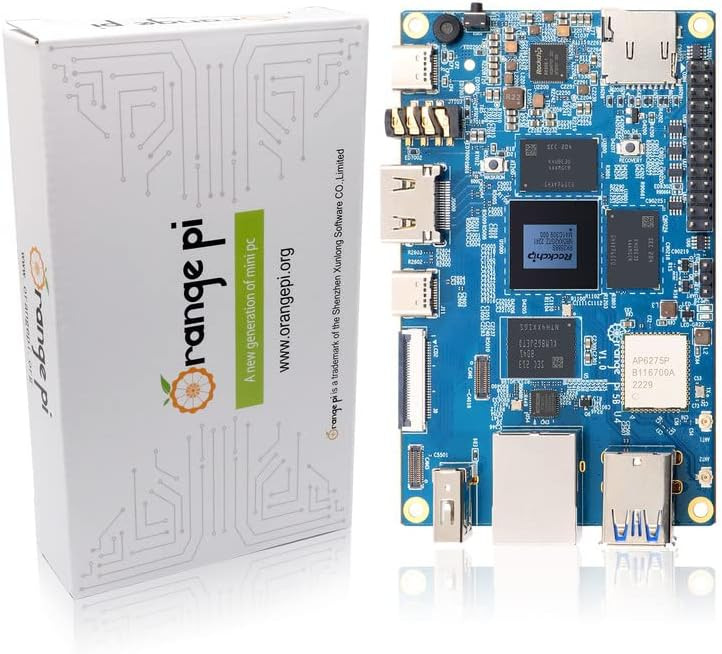
My first Orange Pi arrived exactly like this product page photo, but with the wifi antennas connected. No anti-static bag, no packaging protection, and no functionality.

I put in for an exchange, dropped off the board at my local Whole Foods for return, and got the replacement board Tuesday morning. This time, it was in a sealed anti-static foil bag in a plastic protective case. Much better.

The second Orange Pi arrived like this, and seems to have worked.

I set about doing the board bring-up. It’s more complicated than a Raspberry Pi, requiring the Rockchip dev tools package, a boot loader, and a specific Orange Pi build of Ubuntu. The well-formatted instructions for Klipper on the 5B from 3DP and Me were very useful for getting things going. You can also get the apparently-official 357 page users guide from Orange Pi’s Google Drive that has the instructions and more. I don’t recommend it if you can avoid it, though (ps: you probably can’t completely avoid it, but maybe don’t start with it).

The software downloads were a bit confusing for me… you have to get an Android image download (even if you’re not installing Android) from another Google Drive, which includes the RKDevTool program for Windows, the “DriverAssitant” bundle including the USB driver for board bringup, and the Miniloader folder with boot loader and configuration. It’s a long way from Raspberry Pi Imager or Rufus. And random Google Drive download sources are sketchy.

Anyway, after waiting two hours for the “download complete” message in RKDevTool that never came, I tried logging in via ssh with root / orangepi and got in. (Page 87 on the manual above, so maybe don’t completely avoid it).

From there I made a few more adjustments:

  1. Installed Zerotier VPN and joined it to my network.
  2. Executed ‘apt update’ followed by ‘apt upgrade’
  3. Set my time zone away from Asia/Shanghai with ‘dpkg-reconfigure tzdata’
  4. Verified that I could log in with orangepi, and left the root shell
  5. Changed root and orangepi passwords
  6. Rebooted to make the updates take effect (and to install my external USB SSD)

There are a lot of Orange Pi 5 series models

Another odd sequence of discoveries is that there are three primary models of the Orange Pi 5, each of which may come with different RAM and eMMC storage. I learned some of the distinctions after digging for my one NVMe drive that was smaller than 2280, and then finding there was no NVMe slot.

Here are the three models, with pricing for the smallest configuration I could find on Amazon. I would really recommend the 16GB models, and max out the storage if you go 5B. But it depends on your use case of course.

ModelOrange Pi 5Orange Pi 5BOrange Pi 5 Plus
CPURK3588SRK3588SRK3588S
RAM options4/8/16/324/8/16/324/8/16
Video options1x HDMI 2.1 out1x HDMI 2.1 out2x HDMI out, 1x HDMI in
Network options1x Gigabit Ethernet1x Gigabit Ethernet2x 2.5 Gigabit
Onboard storageNone32/64/128/256None
Optional storageMicroSDMicroSDMicroSD
2230/2242 NVMe2280 NVMe
eMMC
USB2x 2.0, 1x 3.0, 1x 3.1C2x 2.0, 1x 3.0, 1x 3.1C2x 2.0, 2x 3.0, 1x 3.0C
OtherWiFi 6 w/2 antennasm.2 E-Key
Bluetooth 5.0 w/BLE
Amazon PriceFrom $90 (4GB)From $100 (4GB/32GB)From $107 (4GB)
Orange Pi 5 models, with prices as of 7/25/2023 (affiliate links for Amazon, direct links for OrangePi.org).

Be aware that on the 5 and 5B, the USB 3.0 port shares a dual blue port assembly with a 2.0 port–the 3.0 port is on the top, and the bottom port, despite being blue, is USB 2.0. The 5 Plus has a pair of USB 2.0 (black) ports, and a pair of USB 3.0 (blue) ports.

On the Orange Pi 5 and 5B, the only USB 3.0 Type A port is the top port.

You can use a 5V/~4A USB-C power supply and cable, your own HDMI cable, and run without a case (these are slightly larger than a Raspberry Pi so you can’t reuse those cases), but I decided to drop almost $30 on an add-on starter kit. This kit from GeeekPi includes a clear case with tinted top and bottom, rubber feet for said case, USB-C power supply with inline switch, a fan, heatsinks for the DRAM and CPU, a 64GB MicroSDXC card and USB-A card reader, and a HDMI cable. (The description currently says Micro HDMI cable, but the board has native full size HDMI unlike the Pi4b).

Some machines to compare with the Orange Pi 5 family

After posting my plotting tests on Reddit r/chia, someone asked and clarified a question about the Radxa Rock and ODROID machines. I did some quick research and found some viable alternatives. If you have local supply chain or Amazon Prime limitations, these may get you going faster.

Radxa’s Rock 5 Model A and ODROID M1 are comparable to the Orange Pi 5B I tested.

For an upgrade to the Orange Pi 5B Plus style, Rock PI Model B also gives you NVMe onboard and a single 2.5 Gigabit Ethernet port (vs Orange’s dual ports) and support for a Power over Ethernet hat.

If you really want to go overboard, ODROID’s H3 supports NVMe, two DDR4 SODIMMs up to 64GB, dual 2.5 Gigabit Ethernet, two onboard SATA ports, and eMMC support..

I’ve set up an Amazon wishlist to show the systems I’m looking at. If you feel generous and want to send me something from the list, I’ll be happy to give you credit when I post the testing results. If not, it’s a checklist for me to work through.

Where do we go from here?

I tried to keep this post as chia-free as possible, as it’s relevant to a lot of other use cases. I may not have completely succeeded at that. In any event, I will have a Chia plotting post around single board and small board computers in August, and a few other things in mind.

Have I missed your favorite single board computer? Share it in the comments and I’ll add it to my list.
Problems expanding a Synology SHR volume on DS1821+ with a faulty SSD cache attached

I got a Synology DS1821+ array about two years ago, planning to finally cascade my other Synology units and let one or two go. So far, that has not happened, but I’m getting closer. 

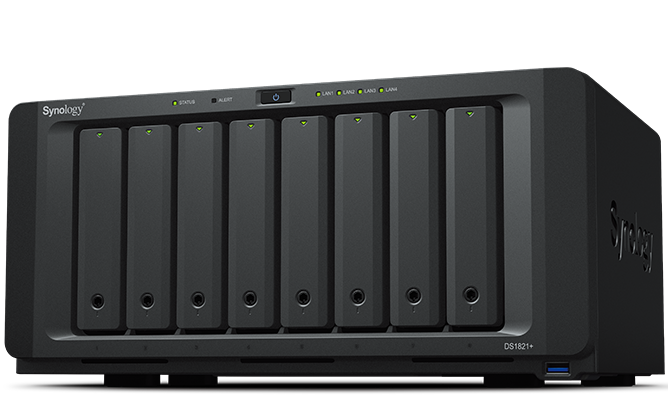
DS1821plus Network Attached Storage array from Synology

Synology DS1821+, photo courtesy of Synology. Mine looks like this but with a bit more dust.

The back story of my DS1821+

This is the 8-bay model with a Ryzen V1500B 4-core 2.2GHz processor, support for virtual machines and containers, and a PCIe slot which I filled with a dual port Mellanox ConnectX-3 (CX312A) 10 Gigabit SFP+ card which came in under $100 on eBay. The expansion options include two eSATA ports (usually used for the overly expensive DX expansion units) and four USB 3 ports (one of which now has a 5-bay Terramaster JBOD attached). 

Today I could get a 40 Gigabit card for that price. In fact, I did for another project, for about $90+tax with two Mellanox cables, just last month, but I’m not sure it would work on. It’s not too hard to find one of these 10 Gigabit cards for under $50 shipped in the US. Be sure to get the dual plate or low profile version for this Synology array.

I ran it for a while with 64GB RAM (not “supported” but it works), and then swapped that out to upgrade my XPS 15 9570 laptop, putting that machine’s 32GB back into the Synology. I had a couple of 16TB MDD white label hard drives and a 256GB LiteON SSD as a cache. I know, I know, there’s NVME cache in the bottom and you can even use it as a filesystem volume now.

Here’s where something went wrong

Sometime in the past couple of updates, the SSD cache started warning that it was missing but still accessible. I ignored it, since this system doesn’t see a lot of use and I don’t really care about the cache.

Volume expansion attempt, which failed. SSD cache warning showing here as well.

Earlier this month, I got a couple more of the MDD white label drives (actually ST16000NM001G-2KK103 according to Synology Storage Manager), I was able to expand the storage pool but not the volume.

Successful storage pool expansion
The volume expansion error. No filesystem errors were discovered.

“The system could not expand Volume 1. This may be caused by file system errors. To rescue your data, please sign in to your Synology Account to submit a technical support ticket.”

Well, as I went to the Synology website to enter a ticket, I remembered the SSD issue and wondered if that caused the problem with growing the volume. 

Easier to fix than I had feared

Sure enough, removing the cache made the volume expand normally, bringing me from 93% used to 45% used. Not too bad. 


Where do we go from here?

At some point in the next month or two, I plan to get three more of these 16TB drives, pull the unused 8TB and unused 256GB SSD, and get the system maxed out. 

I’m a bit torn between using this array to replace my Chia farms, at least for a while, or merge my other two substantial Synology arrays onto it and then use one of them (maybe the DS1515+) as the Chia farm with the DX513 and an assortment of external USB drives. Flexfarmer on Docker makes it pretty easy to run Chia farming on a Synology with minimal maintenance. 

A quick Chia plotting note and a future searchable tip

2022-10-07: Updated with dual Xeon v4 bladebit.
2023-02-11: Updated with a madmax cuda plotter invalid ndevices error
2023-02-20: Updated with madmax cuda plotting with 128GB RAM 

The backlog is getting more interesting, but in an attempt to compare a Xeon Silver processor to one or two E5-2620v4 processors for some future Chia plotting, I’ve arrived at some benchmarks and a bladebit caveat for the new diskplotter.

The idea is to replace my OG plots with NFT-style plots, while still self-pooling them. At some point I will probably expand my storage again as well. 

Links are to original manufacturer specifications. If you find this document useful, feel free to send me a coffee. It might help with the memory upgrades on one or both machines too.

The systems involved:

System one:

Quick observation: On my Monoprice Stitch power meter, this system goes from about 60W at idle to 160W while plotting with Madmax or Bladebit. Not surprising, but noisy and blowy. 

System two:

Quick observation: This storage is very suboptimal for plotting, but it’s what came with the systems. I will dig into whether I have a larger faster SSD. Unfortunately this system only has USB 2.0 externally, and one low profile PCIe slot, so I’m a bit limited. Might put a 1TB NVMe drive in the PCIe slot though and see how that goes. 

System three (I’ve written about this one before):

  • Dell Precision Workstation T7910
  • Dual Xeon E5-2650Lv4 (each 14c28t)
  • 128GB RAM
  • 4x 1TB Samsung NVMe drives on the Ultra Quad (PCIe 3.0 x4 per drive) in software RAID-0
  • Ubuntu 22.04.1 LTS with current updates as of February 2023

Plotters:

Metrics so far:

System one, Chiapos with 12200MB memory assigned

Time for phase 1 = 10876.922 seconds. CPU (147.640%) Sun Oct 2 19:31:42 2022
Time for phase 2 = 4247.395 seconds. CPU (97.160%) Sun Oct 2 20:42:29 2022
Time for phase 3 = 9153.365 seconds. CPU (95.640%) Sun Oct 2 23:15:03 2022
Time for phase 4 = 635.266 seconds. CPU (97.980%) Sun Oct 2 23:25:38 2022

Total time = 24912.949 seconds. CPU (118.660%) Sun Oct 2 23:25:38 2022

System one, Madmax with -r 10

Phase 1 took 1461.93 sec
Phase 2 took 773.745 sec
Phase 3 took 1241.66 sec, wrote 21866600944 entries to final plot
Phase 4 took 61.6523 sec, final plot size is 108771592628 bytes
Total plot creation time was 3539.07 sec (58.9845 min)

System one, Bladebit with 16GB cache configured

Bladebit plot with 16G cache
Finished Phase 1 in 1744.37 seconds ( 29.1 minutes ).
Finished Phase 2 in 174.39 seconds ( 2.9 minutes ).
Finished Phase 3 in 1501.98 seconds ( 25.0 minutes ).
Finished plotting in 3420.74 seconds ( 57.0 minutes ).

System two with SN_750 NVMe drive (500GB), Bladebit with 24G cache

Finished Phase 1 in 1376.37 seconds ( 22.9 minutes ).
Finished Phase 2 in 148.09 seconds ( 2.5 minutes ).
Finished Phase 3 in 970.59 seconds ( 16.2 minutes ).
Finished plotting in 2495.06 seconds ( 41.6 minutes ).

Gigahorse metrics so far:

System three:

./cuda_plot_k32 -C 5 -n 5 -t /nvme/chia/ -2 /nvme/chia/ -d /plots/gigahorse-cuda/ -c xch1xxxxx -f a00fcxxxxx

Total plot creation time was 380.192 sec (6.33654 min)
Total plot creation time was 336.725 sec (5.61209 min)
Total plot creation time was 355.188 sec (5.9198 min)
Total plot creation time was 374.554 sec (6.24257 min)
Total plot creation time was 388.424 sec (6.47374 min)

The bladebit diskplot quirk:

If you get this error, there’s a good chance you didn’t specify the destination for the plot. 

 Allocating memory
terminate called after throwing an instance of 'std::logic_error'
what(): basic_string::Mconstruct null not valid
Aborted (core dumped)

So for example:

./bladebit -n 3 -f <farmerkey> -c <poolcontract> diskplot -t1 /nvme/tmp/ --cache 16G 

would give this error. Unlike the other plotters, it does *not* assume that your temp path is your output path if you only specify the temp path. So you’d use:

./bladebit -n 3 -f <farmerkey> -c <poolcontract> diskplot -t1 /nvme/tmp/ --cache 16G /nvme/plots/

instead. 

The gigahorse cuda plotter error:

With GPU-enhanced plotting now available in released (binary-only) code from Madmax, I decided to throw a modern GPU into my T7910, repair the post-22.04-upgrade mount failures, and give it a try. 

As a reminder from previous posts, this is a dual E5-2650L v4 system with 128GB RAM and 4x 1TB NVMe on the Ultra Quad card. It boots from a 256GB NVMe drive on a PCIe card, and has 4x 8TB SAS drives that don’t seem to be recognized after a few months off. Probably a SATA controller or cable issue, but life goes on. 

So I put one of my RTX 3060 LHR cards in, fixed up the NVMe stuff a bit, and went to run cuda_plotter_k32. It should do the partial memory plot, but alas, I got an error:

Invalid -r | --ndevices, not enough devices: 0

The card showed up in lspci, but then I realized it needed NVIDIA drivers. So I installed the 530 server bundle and tools, and then the plotter worked. 

Alas, the first GPU enhanced plot seems to have wedged the machine against interactive use. Looks like that’s a memory issue that I’ll have to work out, probably by adding memory. 


I will update this with further stats, and maybe make a comparison chart, as testing progresses. I’m also giving serious thought to upgrading the SSD in the dual-E5 machine. 

Obligatory disclosure:

While I work for Supermicro at the time of this writing, the servers and all other elements of my home labs and workspaces are my own and have no association with my employer. This post is my own, and my employer probably doesn’t even remember I have a blog, much less approve of it. 

Three ways to build low profile Chia (and forks) nodes

This is another piece on a part of the Chia and cryptocurrency landscapes. See previous posts at https://rsts11.com/crypto

Need to set up a lightweight VPN to get into your low profile node remotely? Check out Stephen Foskett’s writeup on Zerotier. I’m using it on my Pi nodes to reduce NAT layers.

Many if not most Chia farmers run a full node on their farming / plotting machine. Some larger farms will use the remote harvester model, with a single full node and several machines farming plots on local storage. 

If you’re using Flexfarmer from Flexpool, or just want a supplemental node (maybe to speed up your own resyncing, or to supplement decentralization on the Chia network), you might want a dedicated node that doesn’t farm or plot. And for that use case, you don’t really need dual EPYC or AMD Threadripper machines. 

In fact, a well-planned Raspberry Pi 4B 4GB or 8GB system, with an external USB drive, will do quite well for this use. If you want to do a few forks as well, or another blockchain full node, a moderately-recent Intel NUC would do quite well for not much more. 

So here we’ll look at three builds to get you going. Note that any of these can run a full node plus Flexfarmer if you want, or just a full node. 

If you don’t already have Chia software and a full node installed, go ahead and install and sync the node on a full scale PC. it may save you five days of waiting. My original build for this use case was to test the blockchain syncing time from scratch.

Syncing from a semi-optimal Pi 4B from scratch took about 8 days, for what it’s worth. One member of the Chia public Keybase forum reported about 28 hours to sync on an Intel Core i5 12600k. 

Caveat: Raspberry Pi boards are a bit more challenging to find and even harder to find anywhere near the frequently-touted $35 price point, or even under $150. And for Chia nodes, you want a minimum of the 4GB Pi 4B (8GB wouldn’t hurt). So while it’s possible to run on older hardware, it’s not recommended.


You might also be able to run on a Pi400 (the Raspberry Pi 4B in a keyboard case, which is much easier to find for $100 or so, complete). I plan to test this soon.


Raspberry Pi with external USB SSD. 

This was my initial build, and today it’s running at the Andromedary Instinct providing an accessible full node for about 10-15 watts maximum. 

Continue reading

Turnkey Chia farming with Evergreen Miner, and making your own compact farmer

2025-02-18 update: Based on the stability and responsiveness of Evergreen project management, I can no longer recommend using their gear. I have removed my affiliate program link from this post. I am hopeful that they can resolve some of their drama and other issues, and/or that other developers can come up with a supportable, sustainable replacement for the EVG software platform and infrastructure so people who spent money on the platform will continue to be able to use it. I feel bad for the one support guy left–go easy on him if you need support.

Disclosures at the end, as usual

The Evergreen site and product line have evolved since this post was made in late 2021. Don’t be surprised if product names and prices have changed since then.

If you’ve bought your Evergreen Miner, you may have questions answered at my unofficial FAQ.

A few years ago, a turnkey desktop container/VM platform from Antsle came along, and I thought “this is cool, but I bet I could make one myself.” You can read about that here on rsts11.

Earlier this month I saw a low power Pi-based project similar to the Antsle Nano (which I did build on my own) come out for Chia farming. The project, Evergreen Miner (evergreenminer.com), is the brainchild of a young geek named Dylan Rose who’s worked with Amazon and other companies and has begun an interesting forward-looking Chia project to really bring Chia farming to the masses.

I’ve written about building your own Chia system, and lots of people (tens of thousands at least) have done so. But some people aren’t up for the space, expense, time, tuning, software building, and so forth to make a node and farm.

However, a lot of people could benefit from the technology and platform and even more into the future as the ecosystem matures. So the idea of a turnkey platform that’s relatively easy to build and maintain and expand, even without plotting on your own, sounds pretty good.

Think all of the functionality and potential of Chia, with the ease of setup and management of a typical mobile app, and of course the power draw of an LED light bulb or two. No hardware or Linux or filesystem or SAS knowledge required.

Continue reading