Xangati has announced a new release of their performance management platform for VMware’s Virtual Infrastructure and Virtual Desktop Infrastructure platforms as well as Citrix’s VDI. They’ve improved their dashboards, added more performance monitoring around bursts and storms, and added capacity planning features to help VI/VDI admins move forward with expanding virtualization environments and keep some of their hair in the process.
Earlier this month, I sat down over a Webex with David Messina [1], Xangati’s VP of Product Management, to look at the new release of Xangati‘s VDI Dashboard in advance of today’s announcement. There’s some cool stuff coming out today, and even more coming in the second half of the year.
I’m going to give a quick overview, and then focus here on one really cool thing that jumped out at me from the presentation and demo. Some of my fellow Tech Field Day alums will most likely be covering other details, and I’m especially looking forward to Chris Wahl’s review, as I know he’s been using Xangati Management Dashboard (XMD) in his lab for a while now.
While you’re reading this, go on over to www.xangati.com in another tab and download your own eval (or free single-server edition) and check it out in your own environment. You can also see their press release and a fun blog post that came out this morning. And as a special bonus, keep reading for a chance to meet Xangati and see their latest product live and in person later this week (if you’re in the San Francisco Bay Area).
Why do I need XMD? I have vCenter!
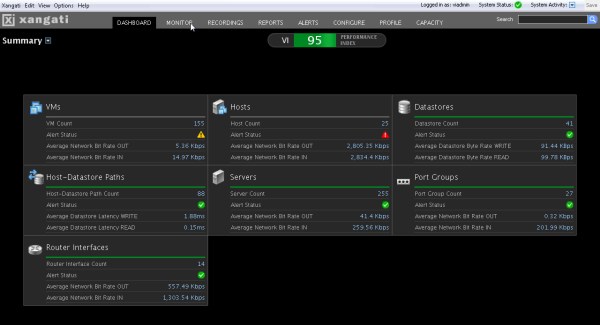
If you have a single vSphere server with local disk, and everyone uses VNC to get into their VMs, then the answer is “you might not need it.” But if you have external dependencies like networks, shared storage, variable load patterns, multiple VI admins creating and provisioning and resizing VMs without your blessing, or (gasp) VDI, you owe it to yourself to give XMD a look. You may make up the costs of deployment during your trial.
One thing vCenter doesn’t necessarily show you, for example, is bursts or storms of resource demand. Anyone who’s ever set up Cacti or MRTG or the like for metrics has found that bursty traffic definitely shows up on user experience, but most practical metrics tools will even out the peaks and you find yourself telling your end user “we’re only seeing 50 IOPs” when that twenty seconds of 500 IOPs may have been causing a serious impact. Or worse, you find yourself passing that trouble ticket off to the storage guys who see the same, and they tell you and your user two days later. Meanwhile, the problem still happens, and you’ve got a grumpier user.
Xangati focuses on fine-grained and broad measurements across your virtualization platform. And even better, they can tie together those bursts to help you find what’s cause and effect, and what’s just the result of troublesome trends in your environment. You can start from the Dashboard and find anything that their software has detected as out of the ordinary, and see the general pulse of your monitored environment as well.
You’ll also be able to dig into linked issues, linked metrics, and look at the measurements immediately surrounding an alert or issue. Maybe the first thing you saw wasn’t the cause, but just a slow decaying effect. XMD will help you track that down even if the issue (or the machine) is gone. Sure, it doesn’t have the 90s retro feeling of just having zoom in/zoom out on a graph, but you’ll get over the loss of greybeard cred when your NOC doesn’t call you as often.
Do These Pants Make My VM Look Too Small?
If you’re the only VI admin in your environment, and you provision all the VMs and storage, you’re probably tired by now. But you probably have a firm grasp on what your environment looks like and where it’s growing and going.
More likely though, you have a few people adding, reconfiguring, and removing VMs, storage, and maybe even network links or cluster nodes. And it’s not inconceivable that you have a spreadsheet somewhere tracking what’s where. Hopefully you’re keeping enough detail to know how fast your datastores are growing, how much of your network links are utilized, and how far in advance you need to boost your environment to avoid affecting users and products. No? Didn’t think so.
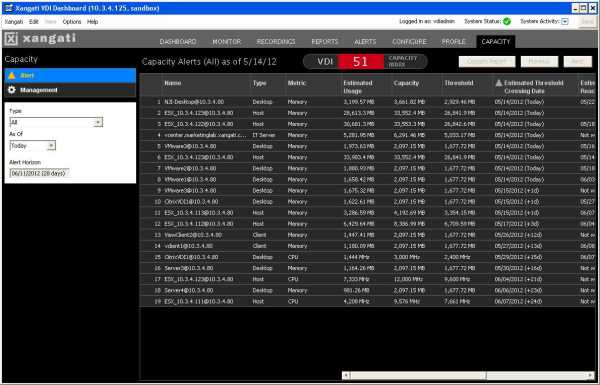
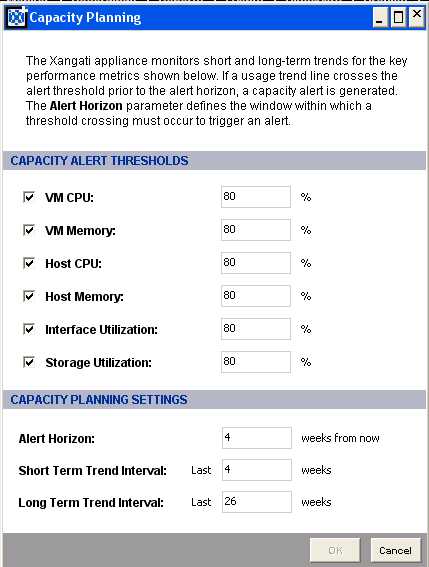
 The new feature that really jumped out at me from the latest Xangati demo was their new capacity planning feature. This is already a very useful feature for a first iteration of the component, and you don’t pay anything extra for it once you’ve got the XMD in place and licensed. You set your thresholds of concern (maybe based on hardware acquisition turnaround time, comfort level, or how fast you expect Double Space or Stacker to kick in on your storage server), and XMD watches capacity, utilization, and basic trending for the resources.
For now, as you see in the screen shot above, the focus is on objects. You can see a particular resource and metric and see status of that pairing on a per-day basis. This won’t save you from the 2:30pm “let’s fill up all the VM disks” party that your favorite developer with root access decides to do, but as code creep, log bloat, and memory leaks work their way into your nightmares, XMD will warn you and give you some time to address the issue. They’re already planning to do capacity monitoring on a cluster or resource pool basis, as I recall, so it will become an even stronger tool in your arsenal in the future.
One item I discussed with Xangati as future improvements on this feature is what I’ll call trend trending. Look at line 15 in the chart above. Now back at me. Now back at line 15. I’m not on a horse. But line 15, a virtual desktop, sees increasing CPU usage and XMD tells us we have 15 days at current trend before we cross our 80% threshold (set in the dialog box at left). At the edge of the screen we see that we’ll probably reach 100% capacity on June 7th, about a week later.
Let’s pretend that’s storage utilization instead, just for the sake of argument. What happens if something changes drastically, say, Thursday night. Instead of that gradual growth of your log files and core dumps aiming for 15 days from now, the developers add a new feature that dumps core every 15 minutes, and we find ourselves looking at threshold in 3 days, or worse, 100% capacity in 7 days. I’d like to see some advanced (and probably optional/granular) trend monitoring so that I’d get a special notification saying “not only are you going down, son, you’re going down faster than you were yesterday.”
I’d be more interested in storage/memory/network utilization on guests, and cpu/memory on hosts. If you’re overprovisioning your VDI resources, you may want more frequent info since one user discovering bittorrent or bitcoin can cause some pain (if you don’t have them blocked).
So where do we go from here?
I’ve only really touched on one feature of XMD, but it’s the one that means the most to me at the moment. If you’re in a VDI environment, you owe it to yourself to talk to Xangati or just get a demo set up with them. I’m not in a VDI environment, so I can’t speak to it very well, although I’ve seen that you get at least as much benefit as you do in the VI environment, but with more potential direct impact on your users in realtime.
As I get my instance of the VI Dashboard going, I’ll probably revisit the capacity planning as well as the other features, and I may get around to some of my other notes as well before the next release. But what’s coming next from Xangati, and what am I hoping for?
First of all, they’re already working on doubling their scaling to support more vCenters. More frequent trend updates for the capacity management piece, live analysis connecting to capacity management, and customizable dashboards across the product are all expected in upcoming releases, as well as more integration and interaction at the hardware level.
And, as much as I’d been hoping for XenServer integration, I am happy to see that Xangati are branching out to a second hypervisor, although it is in the form of Microsoft’s Hyper-V. You’ll see some special value from XMD in the Hyper-V world especially around storage visibility, and those of you with Technet or MAPS access will be able to test this out under existing license without the wonderful 60-day lab reinstall that VMware blesses us with.
Beyond the above, I’m hoping to see improvements in alert sensitivity and trend tracking/alerting on the capacity piece as well, although they’re not firmly carved into the roadmap yet. And I’d really love to see XenServer integration–Xangati has a good relationship with Citrix on the VDI side, so hopefully this will lead to hypervisor synergy as well.
Bonus: Come meet Xangati and Tegile and Hotlink (Oh My!)
By the way, if you’re in the San Francisco Bay Area, you can come meet Xangati (and Tegile and Hotlink) at this week’s BayLISA meeting in Mountain View. It’s free to attend (although we do ask you to RSVP so we can plan pizza and seating) and you’ll get to see a live demo of the freshest XMD around. See details at the previous link, and come join us Thursday night. As another disclaimer, I’m somewhat in charge of BayLISA these days, so it makes me feel good to see a full room, but I don’t get anything tangble if more people show up–more likely I get *less* pizza–but it’s worth it.
Credits and Disclaimer
I would like to thank Xangati for providing the screen shots in this entry… my lab isn’t quite up to providing useful trends yet, although it will be soon.
They have also provided me with a NFR/lab license for XMD which I appreciate, and am looking forward to warming up soon. However, you can test out everything I’ll be working on with the free trial (for vCenter) and the free single-server vSphere edition.
My thoughts in this piece (and in general) are not based on a free license, they’re based on what I find interesting and useful. If I weren’t excited about this technology, I would have left it to others to shout about.
[1] Most likely unrelated to the artist behind the True Blood comics and other IDW classics. And he probably gets enough Poco and “Your Mama Don’t Dance” jokes already, so I’ll spare him those for now.
Some Related Links…
Here are some write-ups on Xangati from Virtualization Field Day 2 in February:
And here are some more recent pieces around the launch:
Let me know what you think in the comments below!



– i3-3217U processor at 1.8 GHZ dual core with 3MB cache), dual HDMI, Gigabit Ethernet at $293 (pictured)
i3-3217U processor, single HDMI, single Thunderbolt, – no native Ethernet – at $323
– Celeron 847 (1.1 GHZ dual core with 2MB L3 cache, dual HDMI, Gigabit Ethernet at $172


 I shipped off my two boards in a medium Priority Mail box to Shuttle on the 26th. On the 29th I got confirmation of the return shipment. They should be at my door on April 2nd. I’ll be reinstalling them, and at some point upgrading to the i7-3770s processors on both.
 So what’s next, Robert?

 rsts11 - Robert Novak on system administration