
NUC NUC (Who’s there?) VMware lab…

nuc-outside

VMware lab who? VMware lab in pocket-size format!

So in our last installment, I found out that I can upgrade my Shuttle SH67H ESXi servers to support Ivy Bridge processors. If you want to read more about that, feel free to visit my Compact VMware Server At Home post from Winter 2012, and my Upgrading my home VMware lab with Ivy Bridge post from Spring 2013.

The replacement boards came in from Shuttle, and they’ll be going back into the chassis. But as you may have seen at the end of the last post, I discovered the Intel Next Unit of Computing server line. The NUC line current includes three models.

  • DC3217IYE – i3-3217U processor at 1.8 GHZ dual core with 3MB cache), dual HDMI, Gigabit Ethernet at $293 (pictured)
  • DC3217BY – i3-3217U processor, single HDMI, single Thunderbolt,  – no native Ethernet – at $323
  • DCCP847DYE– Celeron 847 (1.1 GHZ dual core with 2MB L3 cache, dual HDMI, Gigabit Ethernet at $172
    (Prices are estimated list from Intel’s site–probably cheaper by a buck or ten at Amazon, Fry’s, Central Computer, or your favorite retailer. Feel free to use my links and help me buy the next one. 🙂 )

nuc-inside

All three have three USB 2.0 ports outside (one front, two rear), as well as two USB headers inside, conceivably useful for a USB flash drive or flash reader. They also have an mSATA-capable Mini-PCIe slot as well as a short mini-PCIe slot suitable for a WiFi/Bluetooth card. And there are two DDR3 SODIMM slots, supporting a reported 16GB of RAM (the processor supports 32GB, but the board/kit do not mention this). They all include VT-x with EPT.

I don’t see the Celeron being that useful for virtualization labs, but these are rather multifunctional for a little 4″ square computer. Imagine putting a broadband modem (3G/4G/Wimax) inside for reasonably potent portable kiosk purposes (VESA mount kit included). A card reader and a DVD burner for saving and sharing (and even editing) photos. Intel’s WiDi wireless display technology is supported as well, if you have a suitable receiver. Or use it with a portable projector for presentations on the go (no more fiddling with display adapters for presentations at your meetings!).

But we’re talking about a VMware lab here.

And let me get this out of the way… this was one of the coolest features of the NUC.


That’s correct, the box has its own sound effects.

Let’s get this party started…

Those of you of my era and inclinations may remember when KITT’s brain was removed and placed in a non-vehicle form factor on the original Knight Rider tv series. When I got ready to RMA my Shuttle motherboards, I was thinking about this sort of effect for a couple of VMs on the in-service ESXi server that was about to have its board sent to southern California. And that’s what I had to do. I couldn’t quite miniaturize the server Orac-style, but  that thought had crossed my mind as well.

So I picked up the DC327IYE unit at Fry’s, got an mSATA 64GB card (Crucial m4 64GB CT064M4SSD3) and a spare low profile USB flash drive (Patriot Autobahn 8GB (PSF8GLSABUSB)) at Central Computers, and took a Corsair 16GB DDR3 Kit (CMSO16GX3M2A1333C9) from my stock. Assembling it took only a few minutes and a jeweler’s screwdriver, and then I was ready to implement ESXi.

I backed up the VMs from the original system using vSphere Client, so that I could re-deploy them later to the NUC. Someday I’ll get Veeam or something better going to actively back up and replicate my VMs, but for the limited persistent use of my cluster (cacti and mediawiki VMs) this was sufficient.

One gotcha: Fixing the NUC network…

I originally tried reusing the 4GB usb drive my existing server was booting from, but it didn’t recognize the Ethernet interface. I installed a fresh 5.0u2 on a new flash drive, and still no luck. I found a post at tekhead.org that detailed slipstreaming the new driver into ESXi’s install ISO. I did so, installed again, and was up and running.

I did have to create a new datastore on the mSATA card — my original server had used a small Vertex 2 SSD from OCZ, which obviously wouldn’t work here. But I was able to upload my backed up OVF files and bring up the VMs very quickly.

And one warning I’ll bring up is that the unit does get a bit warm, and if you use a metal USB flash drive, it will get hot to the touch. My original ESXi lab box used a plastic-shelled USB drive, and I’m inclined to go back to that.

What’s next, Robert?

My next step is going to be bringing central storage back. There is a new HP MicroServer N54L on the market, but my N40L should be sufficient for now–put the 16GB upgrade in and load it up with drives. As those of you who saw my lab post last year know, it was running FreeNAS 8, but I’m thinking about cutting over to NexentaStor Community Edition.

I’ve taken the original Shuttle box and replaced a mid-tower PC with it for my primary desktop. I will probably set the other one up with a Linux of some sort.

And in a week or so I’ll grab a second NUC and build it out as a second cluster machine for the ESXi lab. All five of them are slated to go into my new EXPEDIT shelving thingie in the home office, and I’ll bring you the latest on these adventures as soon as they happen.

Upgrading my home VMware lab (part 1: Ivy Bridge) #rsts11

My most popular post on rsts11 has been my compact VMware server at home post. Thanks to Chris Wahl mentioning me on the VMware forums, and linking from his lab post, I see a dozen visits or more a day to that page.

Imitation is the sincerest form of laziness^wflattery

I have to admit that I’ve been a follower in my use of intriguing lab environments. I got the vTARDIS idea from Simon Gallagher, and built a version of it at work at my last job on a Dell Core 2 Quad workstation under my desk. Then I saw Kendrick Coleman tweet about this new SH67H3 from Shuttle that supported 32GB of non-registered RAM… bought one and put 32GB and an i7-2600S processor into it, as mentioned in the “server at home” post mentioned above.

Now as you may know, the i7-2600 series processors are now a generation behind. Sandy Bridge gave way to Ivy Bridge (the i7-3×00 processors) which are currently easily found at retail. But… SH67H3 v1.0 motherboards don’t support Ivy Bridge. And that’s what was shipping when I bought mine in early 2012.

I found an unbelievable deal on a second SH67H3 open (missing) box at Fry’s in February 2013… let’s just say I spent more on a basic Pentium chip to test it with than I did on the chassis itself. But alas, the second one also had a v1.0 motherboard.

Let’s make the ivy (bridge) grow!

I found sources on the Internets that said a v2.0 board supporting Ivy Bridge was out. I further discovered that Shuttle would trade in your v1.0 board for a v2.0 board for $40. Instructions here at Cinlor Tech’s blog if you’re interested in doing this yourself. Note that you can request the case number through Shuttle’s web-email portal if you prefer this to calling. That’s what I did.

sh67 corpsesI shipped off my two boards in a medium Priority Mail box to Shuttle on the 26th. On the 29th I got confirmation of the return shipment. They should be at my door on April 2nd. I’ll be reinstalling them, and at some point upgrading to the i7-3770s processors on both.
Waitasec, 2600 “S”? 3770 “S”? What’s this all about, then?

Yes, that’s correct. I chose to go with a low power version of the i7-2600 processor a year and change ago. The i7-2600s has a lower base speed than the 2600 or 2600k (unlocked version), 2.8ghz vs 3.4ghz. All three support turbo boost to 3.8ghz though. And the i7-2600s is 65W where the others are 95W.

(Here’s a comparison chart of the three i7-2600 and three i7-3770 processor options via Intel, if you’re curious.)

Other noteworthy differences are on the 2600k, which costs $20 more, but does not support VT-d (directed I/O), vPro management features, or Trusted Execution. VT-d is the only feature of particular concern when you’re building your virtualization lab though. (I’ll admit the VT-d was an accidental discovery–I chose the 2600s more for power savings than anything else). If you’re building a desktop, the “K” model has HD3000 graphics vs HD2000 for the other two chips, by the way.

Now that I’m building a second box, I find that my usual local retail sources don’t have the i7-2600s in stock anymore. I could order one on eBay or maybe find it at Fry’s, but for about the same price I could get the Ivy Bridge version and be slightly future-proofed. Once again, the “S” is the way to go.

The 3770 series run at 3.1ghz (“S”), 3.4ghz (3770), and 3.5ghz (“K”) base speeds, all turbo capable to 3.9ghz. The “S” processor is 65W again, vs only 77W for the other two chips. They all have Intel’s HD4000 integrated graphics and the newer PCIe 3.0 support. They support 1600mhz RAM speeds, vs 1333 top for the previous generation. The “K” processor lacks VT-d, vPro, and Trusted Execution, but does have a nearly $40 premium over the other two chips.

All six of these chips have VT-x including extended page tables (EPT/SLAT), hyperthreading, and enhanced SpeedStep. And they’re all 4 core/8 thread/32gb RAM capable processors that make a great basis for a virtualization environment.

nuc-scaleSo what’s next, Robert?

Well, with two matching machines, I’ll be basically starting from scratch. Time to upgrade the N40L Microserver NAS box to 16GB (Thanks Chris for finding this too!) and probably splitting off a distinct physical storage network for that purpose.

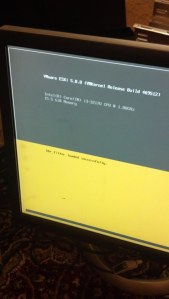
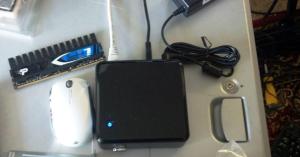
But now, thanks to Marco Broeken’s recent lab rebuild, I’ve been introduced to Intel’s Next Unit of Computing (NUC), so tune in soon for my experience with my first NUC system. Sneak peek of the ESXi splash screen and the actual unit here… stay tuned!

Sorta Sad Panda – End Of Support Life for Some Netscreen/SSG routers

I was just looking up some Juniper gear I saw in a local auction… and discovered that the wheels of progress are indeed rolling along.

According to the Hardware EOS Milestone page, the NetScreen 5XT and 5GT, cute little firewall/vpn boxes that seem to be all over the place, reach their end of support life on June 30th and December 31st, 2013, respectively. Considering they were announced as EOL about 5 years ago, this isn’t a big surprise.

I was a bit concerned when the same page reported that the replacement products, the SSG-5 and SSG-20, had their EOL announced in December 2011, and their “Last Date to Convert Warranty” and “Same Day Support Discontinued” date is April 29th of this year (4 weeks away). But it looks like this only applies to the Japan, Korea, and Taiwan versions. Whew.

However, some further digging… and I see ScreenOS is on its own End Of Life path… 6.1 is gone, 6.2 has through the end of 2013, and 6.3 is gone at the end of 2015.

I actually use an SSG-20 with the ADSL2+ PIM for my store’s Internet connection… and while it’s not under warranty and I don’t expect to need support, this did make me wonder what I should consider for my next CPE need.

I’d be tempted to put together an SRX240 with DOCSIS and ADSL2+, but best price I can imagine for that is $2k or so, which is more than I want to spend on this project. So maybe I’ll drive the SSG-20 into the ground, and deal with the problem when it arises. There’s always a spare ADSL2+ modem in the cabinet just in case…

Why so blue, panda bear?

I’m not all that sad, to be honest. But I have a habit of going with old technology until it no longer does what I need. Or until it’s cheaper to replace than to maintain, which can be the same thing.

Heck, I have actually installed Windows XP in the past month… and it stops getting updates any day now. And I’m used to far worse support prognoses–I’m looking at you, Cisco Linksys, with the “it’s a year old? Oh, no updates for you!” policies on a lot of your home network gear (wouldn’t be so bad if it was stuff that can run DD-WRT or OpenWRT… but RV042 and the like aren’t a fit there).

Anyway, this gear has had a good run, in the market and in my own environment. So I’ll keep an eye out for new and better gear within a minimal budget, and see where the world takes my networks.

How many Internets do you need?

I’m a big fan of redundancy when it comes to Internet connectivity. Sometimes your provider has maintenance, or random cablemodem reboots, or routing issues. And sometimes the hardware fails… I once had an enterprise colo site go down because, of all things, a SFP module for the Internet uplink failed.

There are two roads you can go down…

So for quite a while I’ve had two Internet connections at home. The primary one is ADSL2+ through Sonic.net, a local Bay Area ISP who offer service limited only by the laws of physics. With Annex M turned on, I get about 25mbit down/4mbit up — Annex M trades a chunk of download speed for a smaller chunk of upload speed, and with things like Bitcasa, Dropbox, and so forth, upload speed becomes more important.

My secondary connection is a Comcast cablemodem… we have to have television for the little one anyway, so the additional cost for 25mbit-ish cable service is negligible.

For the longest time, I had separate wireless routers behind each connection. Sonic was the default, but if I had issues with that connection or just wanted a full 25mbit (or 15mbit at the time), I’d switch my laptop to the other wireless. What this meant was that most of the time, I had a 25mbit connection sitting idle.

As I mentioned, the cablemodem service could be justified away as free, if I accept the usual price for a modest tv package, and remember to renegotiate every 6 months or so. But still, it seemed like a waste.

Throwing hardware at the problem sometimes helps…

So I got the new-at-the-time Cradlepoint MBR-1200. This is a Wireless-N router that supports up to 5 broadband wireless modems (USB and ExpressCard), as well as up to two Gigabit Ethernet WAN connections. It will load balance across them, or a common option is to have the broadband cards serve as failover in case the wired WAN fails. So I set up the two connections that way, each getting DHCP settings from the respective providers, and started using it.

I found the connection was not reliable in load balancing mode, primarily due to DNS. Generally an ISP allows its customers/netblocks to use its resolvers, but doesn’t leave them open to the world. So if the router got one provider’s DNS, but the connection went out the other provider’s line, I’d have problems resolving DNS records.

I didn’t think about it at the time–just went back to the manual failover method with separate networks–but when I found a good deal on a Cisco Linksys RV042 dual wan router, I started thinking about it again. About that time I’d started using OpenDNS, a third party DNS provider that provides metrics on your DNS use.

Or maybe throwing the cloud at it will help?

Then it hit me. Third party DNS would get around the split-brain networking issue I’d been experiencing before. I set up the RV042 with Comcast on one side and Sonic on the other, plugged in the OpenDNS resolvers in place of the provider DNS, and gave it a try. It worked.

I have still run into at least one problem that can be traced to the dual WAN configuration. Vonage, my phone service, gets terribly confused if client connections come in from multiple IPs, and was making me log in again for every frame and page I viewed. I haven’t seen this for any other sites, including banking and e-commerce. The solution for this was to set a static route to their subnet through one WAN connection, and now I can view my account again.

And there are two other things I’m disappointed with in this configuration. One is that the RV042 is 10/100, and in theory Comcast could go faster than that would allow. The other is that the RV042 is too old for IPv6, but as I recall the Cradlepoint routers don’t support IPv6 either (even the ones that didn’t EOL last year like mine, sigh), so it’s not a specific pain to the RV042.

I expect that when Sonic.net comes out with native (non-tunnel) IPv6 I will start looking around again for a load balancing option. Maybe Peplink Balance 20/30 would do the job (100mbit, but IPv6 is supported even in the lower-end models).

As an aside, there are newer versions of the hardware above… and the links do add to my toy budget, if you choose to use them.

Have you done small network load balancing? What caveats and eurekas did you run into? And what hardware do you recommend?

Have you hugged your server today?

(Warning: Please don’t take this as an admonition to engage in unwanted intimate contact with waiters or other hospitality personnel.)

But seriously, have you messed with hardware recently?

Just a few years ago, the thought of a senior sysadmin who didn’t know the current de facto standard platform like he knew his kid’s first name would’ve been unthinkable. But as more people move toward cloud, virtualization, siloing, and general service provider clientship, it’s not unthinkable anymore.

I feel like one of a dying breed in my own environment, a sysadmin with live hardware skills. I primarily support departments that have high compute/ram/IO requirements, so until we’re ready to put Nutanix’s Hadoop workload platform to the test, we’re still doing analytics on bare metal. (Virtualize Hadoop? That’s like running Oracle on NFS. Oh, wait.)

I’m okay with this, as I’ve been doing the dirty work of hardware, from cardboard disposal to troubleshooting blinky lights for most of my two decades in technical operations.

But the challenge comes in when a coworker, who’s more into the “devops” and “software defined career” side of technical operations, gets tasked with figuring out why one of my hardware servers won’t boot, or why Kickstart/Jumpstart/FAI doesn’t find a hard drive. You can’t run your VMware CLI to figure this out, especially if VMware has never touched the machine, and Nagios won’t give you any hints if there’s no OS.

Be our host, be our host

If you’re in the final job of your career, at a company that uses no physical hardware, then this probably doesn’t apply to you.

But for the other 99% of you, if you haven’t dealt with hardware recently, it might be a good time to do so. Find an inexpensive but server-grade system and start messing with it. Get some familiarity with the current interconnects, PCI-e connectors (and why x16 isn’t always x16), and perhaps most poignant to my experience, how to work your way around a RAID card.

I recently picked up an older workstation, an HP XW9400 dual Opteron workstation, that’s perfect for this sort of effort. It is a heavy duty piece of hardware, with a 1000w power supply, but it has PCI-X, PCI, and PCI-e slots enough to use almost any gear I want to test out. It also has an onboard 8-port LSI 1068 SAS controller, which is the same family as I work with on Cisco and Dell hardware platforms.

I can also throw a PCI-X Fibre Channel card in, or a 10 Gigabit Ethernet card, or whatever I may want to mess with next. The one missing piece that every sysadmin should have some awareness of is lights-out management, so if you haven’t done iLo or iDRAC or CIMC or the like, you may want to consider a slightly outdated (read: affordable) HP/Dell/Cisco server with the risk of having fewer slots for expansion. The flavors are different but the behavior and expectations are close enough.

Buddy can you spare a server?

If your company isn’t throwing hardware away, consider eBay or your local Craigslist to source a base server, upgrades if needed, and whatever else you want. I built my first hadoop cluster on a pile of $100 HP DL180 servers off eBay, and continued buying gear from the seller who always had a supply of spare parts. Most of them won’t complain if you buy from their web store vs eBay, or the other way around–whatever your budget and preferences allow.

You can find a few of the XW9400 workstations for $200ish buy-it-now with a reasonable base config, if you don’t want to wait for an auction to finish. Don’t worry about the OS license, and make sure you check the shipping cost before bidding/buying.

But where do we go from here?

So you have this nice 1000w server and you’ve figured out the ins and outs of RAID configuration. What now?

Well, you were looking for a nice new space heater, right?

Seriously though, you probably have a good start for your home lab now. For me, this machine will probably be good for testing PCI-X and PCI-e cards going forward, but if I get past that stage, it’d make a great storage server. Or for that matter, a reasonable virtualization box, with a bit of upgrading. I pulled up the quickspecs on HP’s website for this model, and they sold hex-core Opterons for these workstations, and they support up to 64gb of RAM. Mind you, the 64GB of RAM would cost me about $2k on eBay, so that won’t happen this month… but 32GB of RAM will set me back less  than $200. I can probably stash half a dozen disks inside, or use a $40 SAS adapter to connect an external array.

If you got a rackmount box, you may not want to run it at home for the sake of domestic tranquility. But if you have a quiet closet, rack space at work, or the budget for a small colo service, give it some thought. Check your upgrade paths, or find a good use to fit your current config. Or worst case, if you kept the box, post it on eBay.

I have a stack of servers in my lab waiting for triage, so there may be a hardware troubleshooting post coming in March.

References:

  • Check out my TFD colleague Chris Wahl’s posts on his home lab category.
  • HP QuickSpecs. Good place to see options for HP workstations and servers, before digging into eBay

Got other links you think my readers would relate to this topic? Any thoughts of your own to share with other readers? Send me a comment below.