
Test-driving third party optics from StarTech in the RSTS11 labs

Disclosures at the end, as usual.

This fall John Obeto asked if I’d be willing to try out some third party optical modules in some of the varied and random switches I have around the rsts11 home lab. Always willing to help a friend and try some new gadgets, I accepted the challenge. Today I’ll give you an idea of why you might consider third party optics for your switching, why you might not, and how the compatible modules from StarTech.com impressed me.
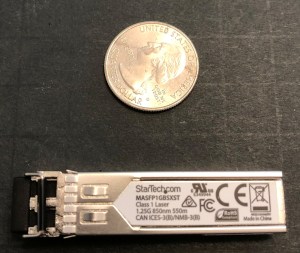
2018-12-01 14.02.27WHAT ARE OPTICAL MODULES?

First, a word on optical modules. For decades, switch manufacturers have made two kinds of ports on their switches, a fixed port and a modular port. Fixed ports were long popular on line cards, where you wanted to get 24-48 (or more) optical ports for fiber cabling into a small amount of space, and you knew your customer was not going to change their optical requirements on the fly.

Modular (or “pluggable”) ports, however, made it possible to sell switches at a lower initial cost and allow the uplinks to be populated later. It also enabled customers to use different connection lengths and media with the commensurate power considerations.

In Gigabit Ethernet (and 1/2/4 gigabit Fibre Channel), the standard has been the Small Formfactor Pluggable, or SFP, module. About the size of a AA battery or a small USB flash drive, it connects to a small blade port inside the switch, and “translates” the connection to short (SR), long, (LR), or extended/extreme (XR) range optics, or even to 1000Base-T copper.

For 10 Gigabit Ethernet (and 8/16 gigabit Fibre Channel), the standard is an extension of the same module called SFP+. Many installations within a rack or in adjacent racks will use copper SFP+ cabling (with no fiber involved), sometimes called Direct Attach Copper or DAC cabling. Continue reading
Warming up the HP Microserver Gen8 and PS1810-8G switch

gen8 front 2018-12-04 17.03.32

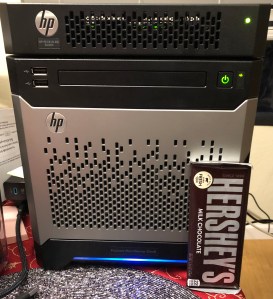
Microserver Gen8 with PS1810-8G switch, Hershey bar for scale.

[This post was started in April 2017 and, like the gear it describes, the post was shelved for a while. I recently took the Microserver and its matching switch out of the dark recesses of the home office closet and brought it up to date. The upgrade report has been posted.]

Quite a while back, I acquired a HP Microserver Gen8 – the Ivy Bridge-based successor to the very popular N40L and N56L models. is model has been replaced by the Gen 10 model, but is still quite serviceable in its own right, and can be found on eBay for $500 and up depending on configuration.

The Gen8 Microserver comes with one of four dual-core CPU options (pictured below from the spec sheet; see Intel ARK for comparison); if you care about PCIe 3.0 vs 2.0, you’ll want the configure-to-order Xeon option or a warranty-voiding aftermarket upgrade. Folks on various home server forums have validated the E3-1230v2 ($75 on eBay), 1260L (from $57), and 1265Lv2 (from $100) processor upgrades (Intel ARK comparison), although the latter may push the cooling envelope a bit. Continue reading

A (Dell) Precision replacement for our Intel NUC desktop

I didn’t really expect to be writing another build report so soon for my primary desktop. But in October of this year, it seemed to be time for a hardware revamping for my primary home desktop.

About five months ago, I built a 7th generation core i7 Intel NUC with Optane technology to replace an older 3rd generation desktop. That system ran a dual-core, quad-thread i7 processor, 32GB of DDR4 laptop memory, a 32GB Optane drive, and a 2TB solid state hybrid drive (SSHD).

Well, after three months I still felt the pain of a dual core system more than I’d expected. And in the meantime, my brother sent me a barebones Dell Precision Tower 7910 as an early birthday present. I was a bit concerned about it at first, since it uses Xeon v4 processors and DDR4 ECC registered memory, neither of which is inexpensive. The 1300 watt power supply had me concerned as well.

I decided it would be worth rebuilding the system anyway, since I could easily sell the system if I chose not to use it, and it’d be fun to run a more modern workstation for a while if I did decide to sell it. Spoiler: I am not planning to sell, but I’ll share the build report here so you can think about the options in case this meets your needs.

T7910 2018-12-04 16.07.19

Dell Precision 7910, pictured beneath the Intel NUC desktop we built out this summer. 1U power distribution unit and 1U security appliance below for scale. Sorry, no banana.

Curious Caveat

I had written most of this post, but when I went to confirm pricing, I realized that I’m running non-registered, non-ECC RAM in this system. Despite the documentation saying UDIMMs are not supported, and Crucial’s compatibility list showing all ECC Registered RAM, the parts I’m using are unbuffered non-ECC non-registered DDR4.

This may not be an optimal configuration, but if the cost and availability work better for you, it may be worth a try. Note that you will almost certainly be unable to mix registered and unregistered DIMMs, and you won’t be able to mix LRDIMMs and regular RDIMMS.

Update [2019-07-09]: I’ve noticed that the system has been sluggish, acting like it was swapping things out to disk even though I was only using about half of the total 32GB of RAM. Flashbacks to bad Solaris configurations in 2004. I replaced the unsupported memory described above with a set of four PC4-1700R Registered ECC DDR4 RDIMMs, and so far with a little bit of use it’s back to what I’d expect from a 28-core system with plenty of memory. Still using nearly half the RAM, with Chrome alone taking 6GB, but it’s snappy and not painful to use.

Continue reading