Khaaaaaaaaan! And Cisco Live Scheduler coming soon!

cumberkhan

Khan (2259)

I know, I’m sure he’s never heard that before…

For those of you coming to Cisco Live US in San Francisco this May, prepare to hear from Sal Khan in the guest keynote on Thursday morning, May 22.

Khan is the founder of Khan Academy, one of the earliest and best-known MOOC (massive open online course) environments… wait a sec. who put that picture over there?

Photo - Sal

Sal Khan, 21st Century

Click click click. That’s better.

Sal Khan wrote “One World Schoolhouse: Education Reimagined,” on the use of technology to improve education, based on his personal history and the development of Khan Academy.

His presence at Cisco Live should give us a different perspective on the real-world application of technology, and underscore the importance of bridging the technology gap around the world.

So where do we go from here?

Have you already registered for Cisco Live US in San Francisco? If so, this Thursday, February 27, you can now go into the session scheduler and start signing up for sessions and blocking out time for the keynotes (including Sal Khan, and probably John Chambers as well). Lots of people already in and reporting happiness over the March 1-2 weekend.

If you’re a Netvet, you got early access to scheduling functions, but if not, you have another two days of read-only access before they open it up to the masses. And you can become a Netvet after you’ve attended three Cisco Live conferences on full passes (IT Management or Full Conference track) in five years, so that’s something to look forward to.

Cisco Live 20140227

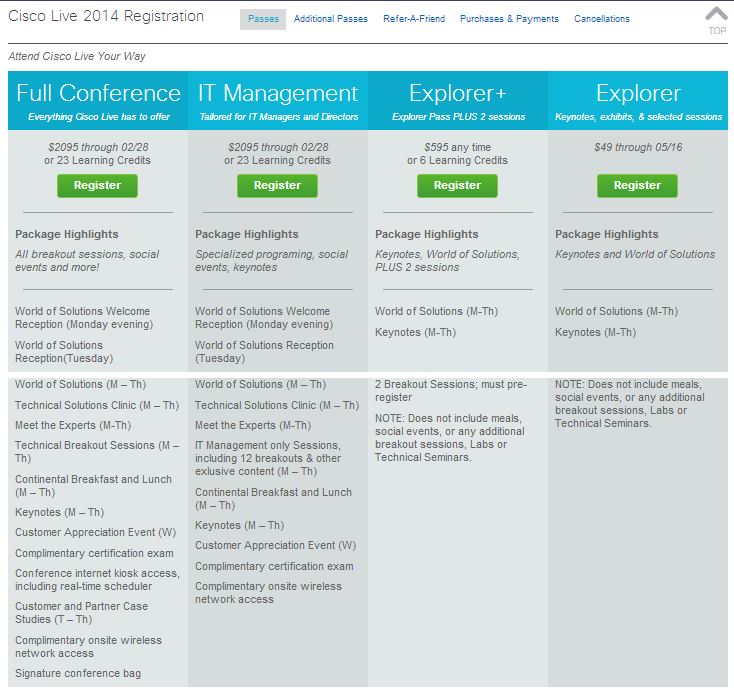
If you’re not registered yet, hey, what are you waiting for? There are several options for registration, including the full passes ($2095 through FridayMarch 14, $2295 from then until onsite) which give you access to just about everything depending on whether you are more focused on IT Management or the general Full Conference path.

But if you don’t have the money, the learning credits, or the corporate backing to cover a full pass, there’s still hope. Cisco Live offers a $49 “Explorer” pass, which gives you access to the World of Solutions vendor expo and the daily keynotes, as well as the Social Media Lounge (confirmed!) and the Cisco Live onsite store which offers books, gadgets, and Cisco memorabilia. If you have $595 to spend, go for the Explorer+ pass, which gives you the Explorer benefits plus access to two technical sessions.

Update 2014/02/27: The “Social Event Pass” has been brought to my attention as a good option as well. For $195, you get the receptions and Customer Appreciation Event/party (unlike Explorer/Explorer+), as well as the benefits of the $49 Explorer pass. You don’t get the breakout sessions, but those end up online anyway.

Update 2014/03/03: @CiscoLive on Twitter has advised that the early registration period that originally ended February 28 has been extended until March 14.

The site will be updated soon, but you can get in and save $200 for the next almost-two-weeks!

Protip: Check with your manager or HR/benefits team to see if your company might sponsor your attendance. If not, consider checking with a tax adviser to see if professional development expenses might be tax-deductible in your circumstances. 

You can read about my path to Cisco Live US 2014 in an earlier blog post if you like. A few other Cisco Live attendees have blogged about this year’s event as well. And if you have questions, feel free to ask in the comments below.

And as a disclaimer, if you click on the Cisco Live links above, I get entered in a contest for a free lab or technical session at the event. Other than that, I get no compensation or consideration for this post beyond the warm fuzzies of supporting an event and team I like.

Planned obsolescence is not green – respect your customers and your environment

2014-02-09 Update: IBM warns that they may require entitlements, but System x server firmware (i.e. x3750) seems to still allow open download with email registration only (unless my 2 year old ThinkCentre desktop includes server entitlements). Remember, the comparison to ProLiant is x86/x64 platform “commodity” servers, not POWER or Superdome or Alpha. Updated listing below.

2014-02-07 Update: @ProLiant on Twitter pointed me to a “response” from HP’s VP of Technology Services, Mary McCoy, which doesn’t respond to concerns at all. It just summarizes the earlier document (linked below), and reiterates the misunderstanding/lie about industry best practices for firmware access.

HP’s “Master Technologists” @tinkertwinsathp are repeating the company line as well. Their profile says they’re “driven to understand the entire IT environment” but they’re missing an easy and obvious one here. The only other x86 server vendor I’ve been able to find who has this “industry best practice” is Oracle. And their assertion that Cisco fiber channel switches and Redhat operating system are also industry standard servers, well, falls flat.

I’m still hopeful, but far less optimistic than before. But do read on.

There was a bit of drama on the Twitters yesterday… not the rumor that Punxsatawney Phil is actually not the same groundhog from 19th century fame, but the news that HP’s server division is going to be locking down firmware and service packs to current ProLiant warranty and service contract holders. Planned obsolescence anyone?

http://www.youtube.com/watch?v=Nhm0BfyqlIE

Firmware wants to be free

My Cisco UCS friends were quick to chime in on the news, noting that you don’t need a warranty, entitlement, or service contract to get current UCS server firmware. @CiscoServerGeek demonstrates this on his “Cisco UCS updates remain FREE” blog post, and I was able to reproduce this myself with an ancient totally-unentitled CCO account. This is cool, and to be honest I was a little bit surprised (keep reading to see why).

To my knowledge, most other industry standard server manufacturers also still make their current firmware and drivers available for free regardless of entitlements or contracts. I’ve downloaded Dell, NEC, IBM, and other industry standard x86/x64 server firmware updates for my home lab in the past month without having to spend money, and it’s basically a necessity for a home lab (or a startup test environment).

HP Firmware Update 20140206Now to be honest, the HP news is based on an unusually vague email from HP, stating that “Select server firmware and SPP” will require “product entitlement.” The HP support document on the matter (pictured at right) continues to use the “select updates” language, but seems to imply (as does the email) that if you have *any* HP server that’s out of warranty/contract, you are no longer allowed to update it.

HP states in the above document that “[t]his change brings HP into alignment with current industry practices” which is an outright lie, at least if you consider Dell, IBM, Supermicro, NEC, Fujitsu, or Cisco to be included in “current industry practices.” And if the policy applies to all HP servers, it’s going to effectively remove HP from home lab, aftermarket, and influencer/recommender scope.

Mind you, most of the big manufacturers of servers would probably be perfectly happy if they only got business from companies with a strict 3 year lifecycle, and the 3 year old servers got scrapped at the end when brand new ones were bought. Luckily most vendors have not followed this “planned obsolescence” path–in fact, none of the big names did up until this month.

So as a technologist, home lab operator, influencer, and recommender, I’m hoping HP clarifies and promptly fixes this shift in policy. Require a confirmed email address and support site login if you must (Cisco and IBM require this; Dell, Supermicro, Fujitsu, and NEC do not, as far as I know), so that you can provide a generically differentiated support experience and notify me of critical bugs in my products’ firmware that may cause the imminent heat death of my lab.

But you really have nothing to gain by locking me out of firmware for a server I legitimately own, no matter how old it is, who I bought it from, when I bought it, or whether I spend thousands of dollars a year on support contracts.

As an aside, I’ve heard from off-the-record sources that HP will be clarifying this policy in a blog post soon. I am hopeful, but not optimistic, that something positive will come of this. 

People who live in glass houses shouldn’t throw 10 year old routers

This got me to thinking about the last time (and actually every time) I’ve gone to look for a newer IOS version for my Cisco 1605R (or 1721 or 1751) router in my home lab stash. I can find lists of newer versions, read release notes, and see the filenames with my aforementioned ancient personal CCO login.

But I apparently have to spend about $400 on a SmartNet contract on my 10 year old router (if I’m lucky and the product isn’t past the final EOL) to download 20MBytes of firmware. Or I can throw the switch away. They both have issues when it comes to “green” if you know what I mean.

I get that there are different licensed feature sets, and there would’ve been financial considerations back when the 1605R was an available product, but it’s not costing much and it’s not losing Cisco any business to let me download current non-custom code that is obviously available on the site for functional 10+ year old gear, but that I can’t buy entitlement for anymore (or can’t reasonably afford to do so).

There are similar issues when it comes to aftermarket Meraki wireless gear–I mentioned in an older post that I bought an MR14 from an e-cycler and since the previous owner has changed jobs a few times and isn’t all that easy to find, I now have a nice Meraki paperweight under my desk. And I’ve seen similar issues with some other “small deployment” wireless gear as well.

But I know this guy who knows this guy, you know…

There are ways around these limitations, of course; some require a contact at the company to bend the rules, and some require someone else to break the rules (that’s the only way to get Solaris patches anymore). That’s better than nothing, if you’re lucky.

But most of us with home labs, offline test environments, and so forth want to be legitimate. Some of us go to great lengths to abide by the letter, if not the spirit, of the “law” on these things. And many of us make some noise about what we like to work with, which may lead others to try it out and then spend some money.

So where do we go from here?

I will be watching for updates from HP on this policy, and Cisco and others as well on their respective kneecapping methods. I welcome your thoughts on firmware availability and vendor support/empowerment for home labs and smaller environments. And if you know of any server manufacturers/OEMs whose “current industry practices” include limiting BIOS/firmware updates to under-warranty/under-contract customers only, please let me know so I can update this post.

Disclaimers (You know I love disclaimers): I do not work for Cisco, HP, or any other hardware company. I am personally a Cisco Champion, a friend of HP (who have had me in to one of their influencer events), and an employee of an enterprise who buys a lot from both Cisco and HP (among other vendors). I have never knowingly spoken with a groundhog.

My thoughts and observations above are independent of any of these associations. I am a long-time system administrator who has long worked with Cisco and HP and most of the other brands mentioned in this article in my lab and/or my day jobs over the years, and my observations are based on that experience alone, and should not be taken to represent my employer, any company that likes or hates me, or any coffee shop I may frequent.

Related links:

Tiny Death Star or MJ7 OTA upgrade? What’s killing GPS for my Galaxy S4?

This is sort of a meta-post/supertweet. I’m hoping to hear from folks who may have seen weird issues with GPS on a Samsung Galaxy S4 recently. There are two correlated factors. 

1. Firmware update.

I’m running stock firmware on my S4, Verizon Wireless 16GB edition. Never rooted or modded. About 3 weeks ago (November 2 I guess) I was offered the MI1_to_MJ7 upgrade over the air from Verizon. Since then, I’ve found my location services to be intermittent. 

2. Tiny Death Star.

About the same time I installed the new Disney/NimbleBit “Tiny Death Star” game. It crashed a lot, and got a few updates within a week or so. I still play it daily. it oddly requires front facing camera and GPS/”Digital Compass” which has me curious whether it’s related to the GPS issues. 

So I’m trying to figure out if one or both of these is actually causal. When the GPS (either GPS status app or Waze) starts reporting no GPS signal, turning location services off and on again in Settings fixes the problem. So does the “GPS” button in the pulldown menu. 

I’ve tried Verizon’s (abnormal) suggestion of rebooting the phone daily but I’d be disappointed if that was the (only) fix. I normally reset only when flying. And other than a well-known bug in my old HTC Thunderbolt that had me GPS-located 10k feet below Guam, I haven’t had to do this for GPS reasons before. 

Any of my readers have suggestions?

Wrangling a Cisco Meraki Wireless network into VPN duty

As many of you know, I have a side line of distraction running a computer shop. From February 2012 through July 2013, it was walking distance from home but still had a 20mbit ADSL line from Sonic.net.

In July I had to move out of the shop for the construction of new luxury apartments on the property. And in the year and a half I had that location, Sonic went through some adjustments and the costs involved with setting up service at the new location more than doubled. So I’m holding off until I have time to spend more than a couple hours at a time in the shop. For now I’m connected with a Verizon Wireless 4G LTE USB modem on a Cradlepoint MBR1000 router/access point. 

In the last week I’ve found a pretty good way to access systems in the shop from home without too much hardware wrangling. My home network has two Meraki access points, a MR12 (courtesy of the Meraki webinar series) and a MR16 (courtesy of a fellow Tech Field Day delegate who wasn’t using his). I have an MR14 on the floor of my office, waiting for me to track down its previous owner and try to get it removed from his account so I can add it to my account, but I expect that may not happen soon.

High Level Wrangling Overview – Picking Out The Pieces

I was looking at the Meraki Teleworker Z1 router, which supports VPN connectivity back to a VPN concentrator. It was tempting, still is in fact, but in the process of researching that solution, I discovered three interesting things.

1) Meraki provides a virtual concentrator for low-volume use, as a free download if you have the enterprise dashboard (i.e. have a MR device under cloud management) already. You don’t need a physical concentrator/MX device. And you don’t need ESXi to use it; I have it in VMware Player on my desktop for now.

2) That VPN connectivity works between MR access points as well, so you can set up, say, an MR12 in one location, specify a SSID as a VPN tunnel, and access the other network that way.

3) The MR12 access point has a second wired Ethernet connection that can be used to bridge wired clients into the VPN. I knew about this from the day I unpacked the MR12, but I only learned today how to make it work.

Low Level Wrangling Implementation – The Secret Of Association

Prerequisites:

  • Access to your Meraki dashboard
  • Two MR devices installed and working, one at either site. (MR12/MR58 required if you want to bridge a LAN through the VPN, as seen in Fourth step below)
  • Internet connectivity for both MR devices
  • A way to run a VMware virtual machine (Player, Fusion, ESXi, Workstation should all do) at your HQ site

In these steps we may refer to “HQ” as the main location, where your VPN concentrator and most of the servers your remote clients need to access would be.

First step – Create a virtual VPN concentrator “network” at “HQ”
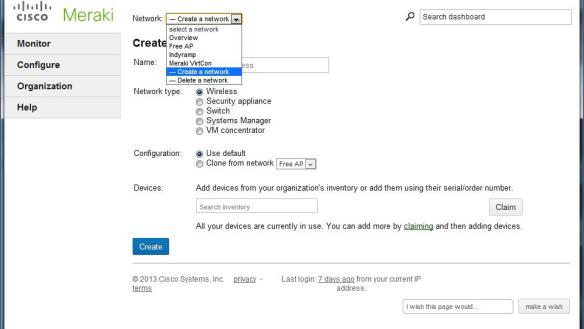
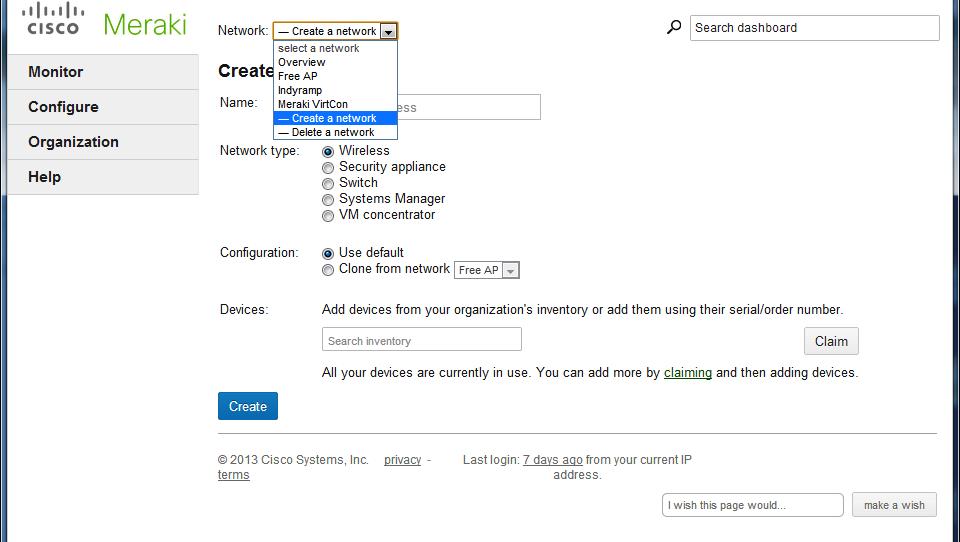
meraki-vpn-01-create-networkWe’re going to set up the virtual machine that hosts the VPN concentrator. This should run at your HQ site.

You’ll go to the Network pulldown at the top and choose “Create a network.” Give it a name and choose a network type of “VM concentrator.” Click Create.

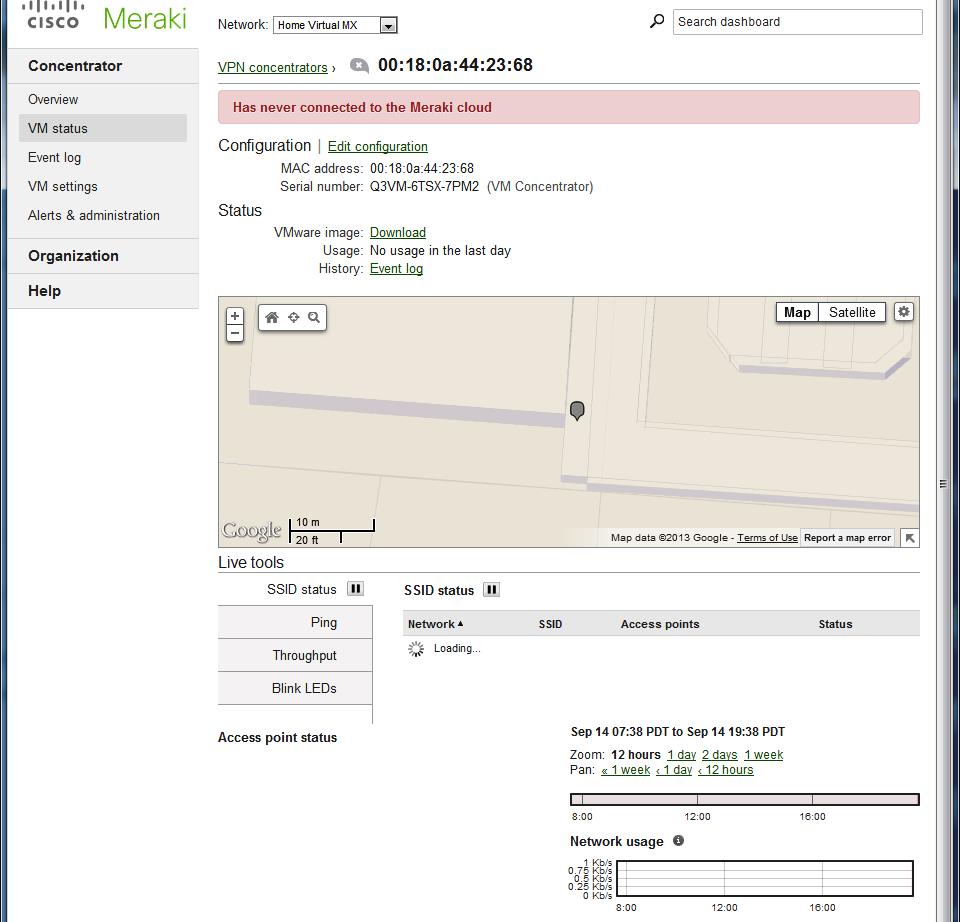
Then you go to Concentrator-> VM status and see that this concentrator has never connected to the cloud. This might be because you’ve not started it up yet. Let’s do that now. meraki-vpn-02-new-mx
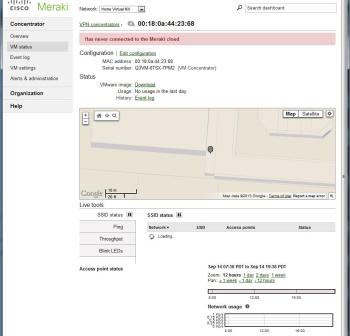
Click “Download” next to “Vmware image” and receive the zipfile (about 15MByte, 24MByte when you uncompress it). Create a new directory and extract it to that directory. Then open it with your choice of virtualization products. For VMware Player you’d use “Open a virtual machine.”

Note that the requirements are pretty small, and take that into account when considering your VPN load as well. By default the VM comes up with 1 vCPU, 512MB RAM, and 128.5MB disk allocated.

Now start up the VM and wait for it to make contact with the Meraki Cloud. When it connects, you’ll see Internet Port, Public IP, and no more “never connected” message on the Meraki dashboard.

Second step – Create a VPN SSID

Meraki’s documentation says that VPN tunnels are configured on a per SSID basis. This means that you either need to make an existing SSID serve VPN traffic (not recommended by me, as it may get confusing at the site that hosts the VPN concentrator), or create a new one explicitly for VPN traffic.

You can create a new SSID on the Configure->SSIDs page. I named mine Home VPN since the VPN concentrator is at home. Name it, and leave it disabled. Save changes.

Now we’re going to set up access control for the new SSID before enabling it. Go to Configure->Access Control, choose your new SSID name, and change these settings.

  • Association requirements – Set to whatever you like; most home or casual users will use Pre-shared key with WPA2
  • Addressing and traffic – Here’s the magic bit, choose VPN: tunnel data to a concentrator. This will open the “Concentrator” menu item, and you choose “Tunnel traffic to <your concentrator name>.” Test connectivity but don’t panic if it fails.
  • VPN tunnel type – If you want all traffic from the other end of the VPN to go through your “main” site, leave it at Full tunnel: tunnel all traffic. If you only want to tunnel traffic intended for your “HQ” site (where the concentrator lives), choose “Split tunnel: tunnel only selected traffic” and check the “VPN split tunnel rules.” By default they’re probably good enough, but if you have other networks at your “HQ” that don’t show up, add them as separate split tunnel rules.

Other options can be set, but don’t necessarily pertain to the VPN, so I’ll leave them as an exercise for the reader.

Now go back to Configure-SSIDs and you may enable your newly secured VPN SSID.

Third step – lock down the VPN SSID to your remote sites

Connecting to the VPN SSID from your headquarters may have unexpected results, and if you take devices between sites, you may get suboptimal performance when you’re at HQ. So I’d recommend limiting the SSID availability for this SSID.

The way I do this is to use a “tag” in the access point configuration. For each AP that’s remote and will get VPN access, go to Monitor->Access Points and choose your remote AP. “Edit Configuration” and add a tag like “RemoteVPN” (note that tags are individual words, not comma-separated, so “remote vpn” is two tags). Save your changes.

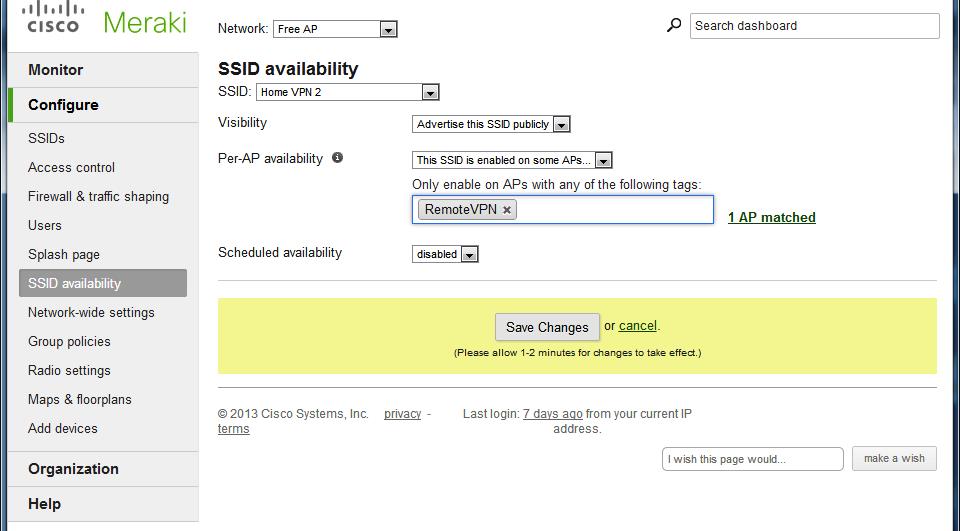
meraki-vpn-05-ssid-availability

Now go back to Configure->SSID Availability, choose your VPN SSID, and change Per-AP availability to “This SSID is enabled on some APs.” Choose your tag and save your changes.

Now the VPN SSID will only show up on the APs you’ve tagged as RemoteVPN, and not on your HQ APs.

Fourth step – enable wired connectivity to the VPN

The MR12 and MR58 access points have a second 10/100 Ethernet port on the back. This port can be used as failover in case the first Ethernet port loses Internet connectivity, but for this project I want to use it to connect wired systems (i.e. my shop lab, wired cameras, etc) to the VPN.

The port is disabled by default. I didn’t realize this at first, and gave up on it for quite a while, but during this project I found that you can bridge the wired port on the MR12 to any of your SSIDs.

Oddly, this shows up in “Network-wide settings” under Configure. You can go down to the Device configuration section and change “Clients wired directly to Meraki APs” to “Behave like they are connected to ‘Home VPN'” (or whatever you call your VPN SSID).

When you do this, and save your changes, anything connected to that wired port will behave, for network purposes, like it was a wireless client on the SSID.

One caveat from Meraki, though:

If you disable an SSID on an AP, and the SSID is also specified for wired clients, the wired clients feature will still be enabled on the AP. 

This means you can use a MR12 purely as a wired bridge to your VPN if you want to. I believe it also means that the wired client functionality is independent of the settings we made in the third step above. And if you have an MR12 at your HQ site, connecting anything to the second ethernet on that AP will VPN it through your concentrator.

It may have other security and availability implications. In the small networks we’re talking about, it probably isn’t too significant. You probably have switch ports available elsewhere at your HQ location anyway.

So where do we go from here?

At this point, I have transparent connectivity between my home office and the shop. Anything connected in the shop on my VPN SSID, and anything on the wired port on the MR12, gets its DHCP lease, DNS settings, and so forth from the Cradlepoint MBR1200 router in my home office, as if it were under my desk at home.

My next steps will be to wire up a switch on the shop end of the connection and hang a VMware server off of it. I’m still stocking parts for the other machines, but one server will be good enough to validate the VPN connectivity and start working on upgrades.

I will have to go with a real wired connection someday, most likely Sonic with bonded ADSL2+, and then it’s conceivable that I might outgrow the virtual VPN concentrator. At that point I’ll either look at getting a deal on a MX60, or revamping the VPN altogether (possibly with the Cradlepoint MBR1200 and MBR1400).

If you’ve played with this method of VPN connection and have any further suggestions, or observations on the performance limits of the virtual concentrator, I’d love to hear about them in the comments below.

Nth Generation and a different flavor of Field Day

tl;dr:

Check out HP Storage Tech Day 4 live streaming at  hpstorage.me/14RhvY0 starting Monday 7/29 at 8am Pacific/11am Eastern

Follow all of the attendees on twitter via this Twitter List (and follow @johnobeto and @geekazine as well–I couldn’t add them to the list)

Or follow the larger twitter conversations around these events at hashtags #HPTechDay and #NthSymp

Followup posts:

It’s going to be a busy summer

I just got back from a team-building event at Disneyland Park last week… and I’m headed back for Anaheim this weekend to join an auspicious group of technologists for the HP Storage Tech Day and then move on to the Nth Generation Symposium. Many thanks to HP for inviting me to the events.

Going back to 3PAR, to 3PAR, to 3PAR

628x471[1]It’s an odd reunion of sorts for me. As some of you know, I got my start in network administration supporting the Gigabit Ethernet group at a startup that became part of Nortel Networks.

A year after leaving Nortel, I got my start on non-local storage administration at a startup that became part of HP. I took over sysadmin duties at 3PAR in 2001, from a couple of developers who went back to doing the code (and yelling at me for not believing the All Functions In One Server gospel, but that’s another story), and went on to run the first InServ storage device in production outside the labs. 

So at the HP Tech Day, in addition to seeing some deep details on HP’s software defined storage and storage management platforms, we’ll be hearing from my former coworker, and now HP Fellow, Siamak Nazari on the StoreServ platform. There’s more coming after that, as @hpstorageguy Calvin Zito mentions on this “guest bloggers” post below the formidable list of Tech Day bloggers.

Then on to the Nth Symposium

NTH_Symposium_2013_Logo-transparent[1]Then we move on to three days at Nth Generation Symposium, a conference put on by HP’s channel partner in Southern California, Nth Generation. The keynote speaker will be HP CEO Meg Whitman, who I very indirectly worked for at eBay (she was the exec of the week at my eBay new hire orientation in 2006, which was pretty cool), but I’m also looking forward to seeing my boss’s  boss from 3PAR, HP Storage General Manager David Scott (pictured above during the HP/Dell bidding war).

You can join us, virtually…

There will be live streaming of the HP Tech Day, and some bits of Nth may see live coverage as well. Stay tuned here for further details on streaming and other resources, and check out some of the other Tech Day bloggers.

You can watch our tweets (and others) from now through the event at hashtags #HPTechDay and #NthSymp

I’ve created a Twitter list for these folks, in case you want to pull up a search window in your client. Feel free to use the HP Storage Tech Day 4 twitter list to watch what we’re seeing and doing during the event next Monday. (I couldn’t add John Obeto to the list for some reason, and I left Jeffrey Powers off because he was about 10x the tweet traffic of everyone else combined. Feel free to watch them separately if you like.

…or physically, for a modest sum…

If you’d like to attend the Nth Symposium, it’s apparently too late to get in free (that boat sailed July 19th, alas–hope my coworkers who kept saying they were going got registered and approved in time). However, for a modest fee you can still  join us at the Disneyland Hotel next week for an impressive agenda, featuring many HP execs as well as cool names from partner companies as well (Boyd Davis of Intel, Martin Casado of VMware, and quite a few others).

Rob’s highlights

For the HP Tech Day agenda, I’m especially looking forward to the StoreServ Deep Dive, and the storage management deep dive in the afternoon (with OpenStack). Obviously the 3PAR technology has come a long way since I rolled the gear across from 4245 to 4209 Technology Drive. They’ve made impressive moves since I bought my last system, an E-series at Trulia a few years ago. I tend to see more of the smaller scale/cutting edge storage tech at Tech Field Day events, so this should be a good balancing factor.

For the Nth Symposium, some of the key talks I’m looking forward to are:

Tuesday

  • Big Data Analytics (HP Autonomy)
  • New Style of IT (Meg Whitman)
  • HP and Cisco (Bill Swales, HP Industry Standard Servers)

Wednesday

  • Converged Storage (David Scott)
  • Hadoop, Vertica, and Applications (Girish Munada of HP HAVEn)

Thursday

  • Wicked Information (Noumenal)
  • Intelligent Hybrid Storage (X-IO Technologies)

ins_specialoffers_disneyland[1]And since it’s right there…

  • Depending on how worn out I am Tuesday night, I will probably be heading into the parks after the showcase closes. If I know you (it’s a small world…), touch base and maybe I’ll bring you along. 🙂

Disclaimer: Travel to HP Storage Tech Day/Nth Generation Symposium was paid for by HP; however, no monetary compensation is expected nor received for the content that is written in this blog.